Quota Requests & Approvals
When a customer reaches their account-level quota limit, they can submit a Quota Increase Request from the customer portal. A CMP admin reviews the request and approves or rejects it.
| Who requests | Customer (account owner) when account quota is insufficient |
| Who approves | CMP admin |
| What changes on approval | Account-level quota for the requested resource(s) |
| Admin path | Settings → Quota → Resource Quota Requests |
| Customer path | Profile / Account Limits → Request Increase |
Quota requests raise the account ceiling. They do not replace project-level quotas.
After the account quota increases, the account owner can still allocate capacity on each project's details page if projects use explicit limits (new projects default to Unlimited).
End-to-end flow
Customer hits account quota limit (or needs more capacity)
        ↓
Customer submits Quota Increase Request in the portal
        ↓
Admin receives notification / sees request under **Settings → Quota → Resource Quota Requests**
        ↓
Admin opens request → reviews current usage and requested values
        ↓
Approve  →  Account quota updated immediately → customer notified
   or
Reject   →  Account quota unchanged → customer notified
        ↓
(If CloudStack) Verify orchestrator max.* limits ≥ new CMP account quota
Customer: submit a quota request
Customers request more capacity when provisioning is blocked by account quota, or when they expect growth.
Path: Customer portal → Account / Quota → Request Increase (or equivalent Quota page action)
Form title: Request To Increase The Quota
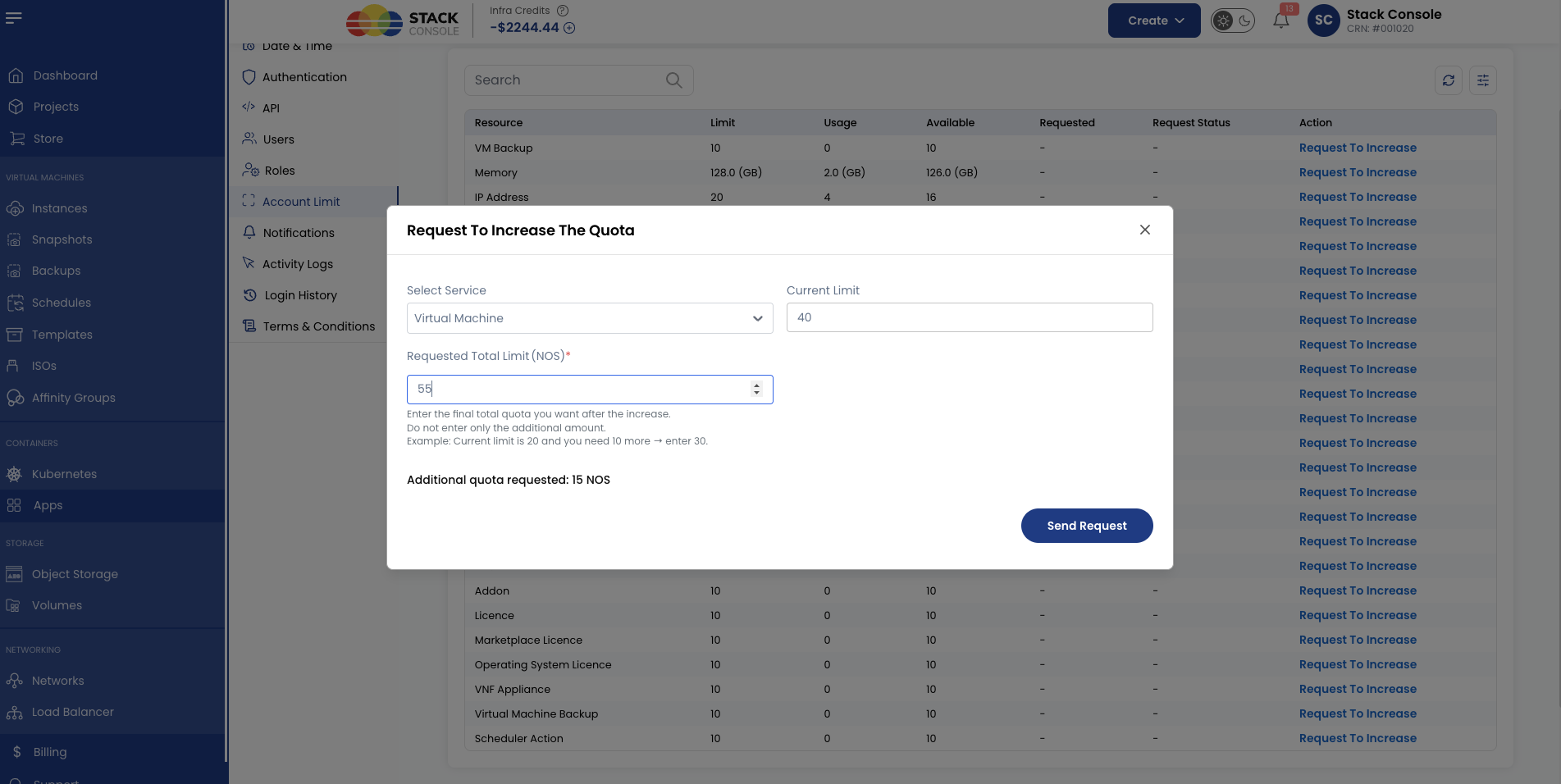
Select Service
Required. Choose the service / resource whose account quota you want to increase — for example, Virtual Machine, storage, network, or other quota types available for the account.
Current Limit
Read-only. CMP shows the account's current quota for the selected service (for example, 40).
Requested Total Limit (nos)
Required. Enter the final total quota you want after the increase — including what you already have.
Do not enter only the additional amount.
| Example | Value to enter |
|---|---|
| Current limit is 20 and you need 10 more | Enter 30 (not 10) |
| Current limit is 40 and you need 15 more | Enter 55 (not 15) |
Unit depends on the service (for example, nos for Virtual Machine count, gb for storage, core for CPU).
If current limit is 40 and the customer needs 15 more VMs, they must enter 55, not 15. Entering only the additional amount understates the requested account quota.
After submitting
- The request appears under Settings → Quota → Resource Quota Requests as pending
- Account quota does not change until an admin approves
- The customer should wait for approval before retrying provisioning that was blocked by quota
Admin: review quota requests
Path: Settings → Quota → Resource Quota Requests
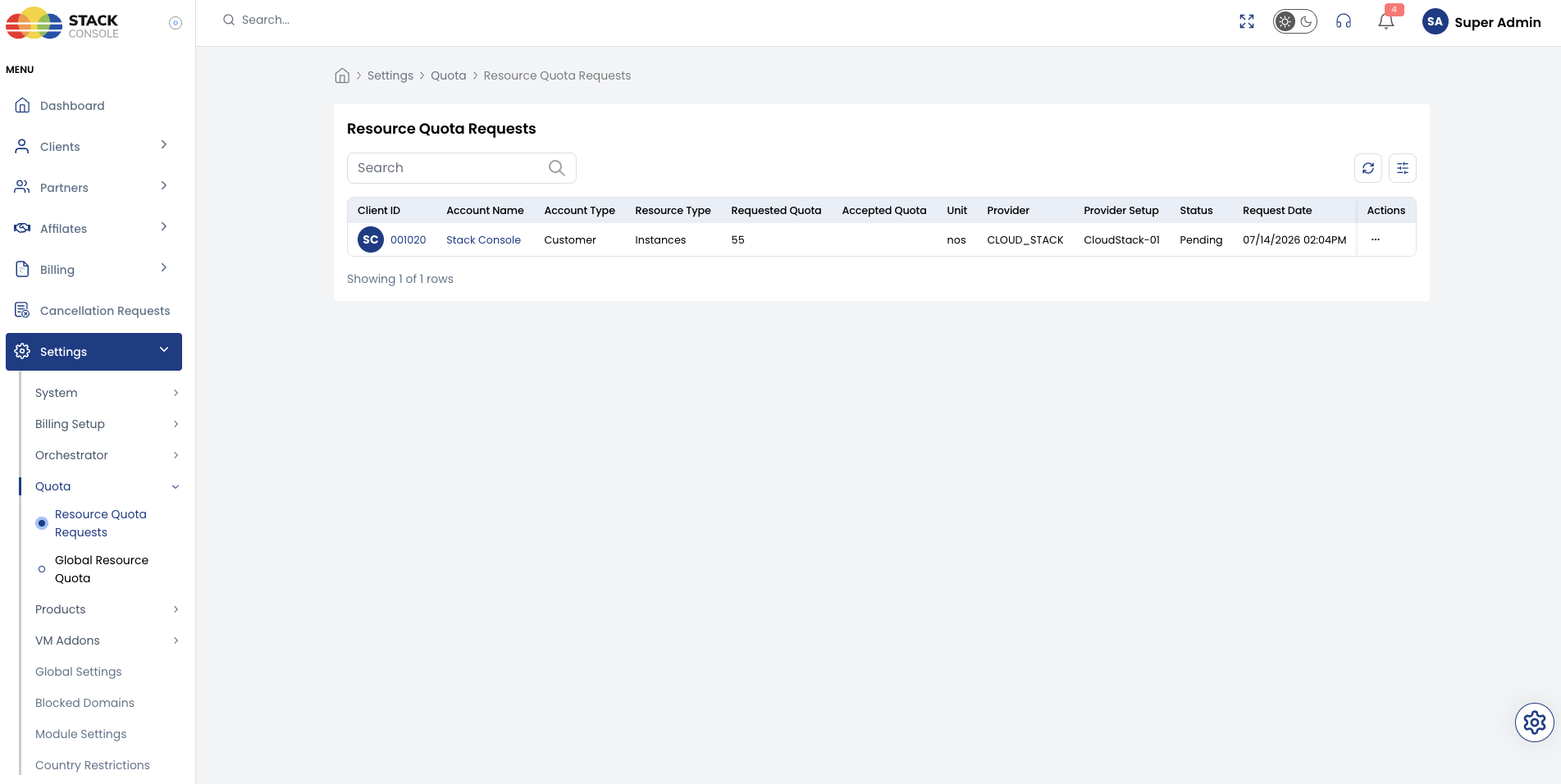
The list typically shows:
| Column / detail | Purpose |
|---|---|
| Customer / account | Who submitted the request |
| Resource type | Which quota row to change |
| Requested | Requested value |
| Date submitted | When the request was opened |
| Status | Pending, approved, or rejected |
Approve a request
- Open the pending request
- Confirm or adjust the approved quantity
- Click Approve
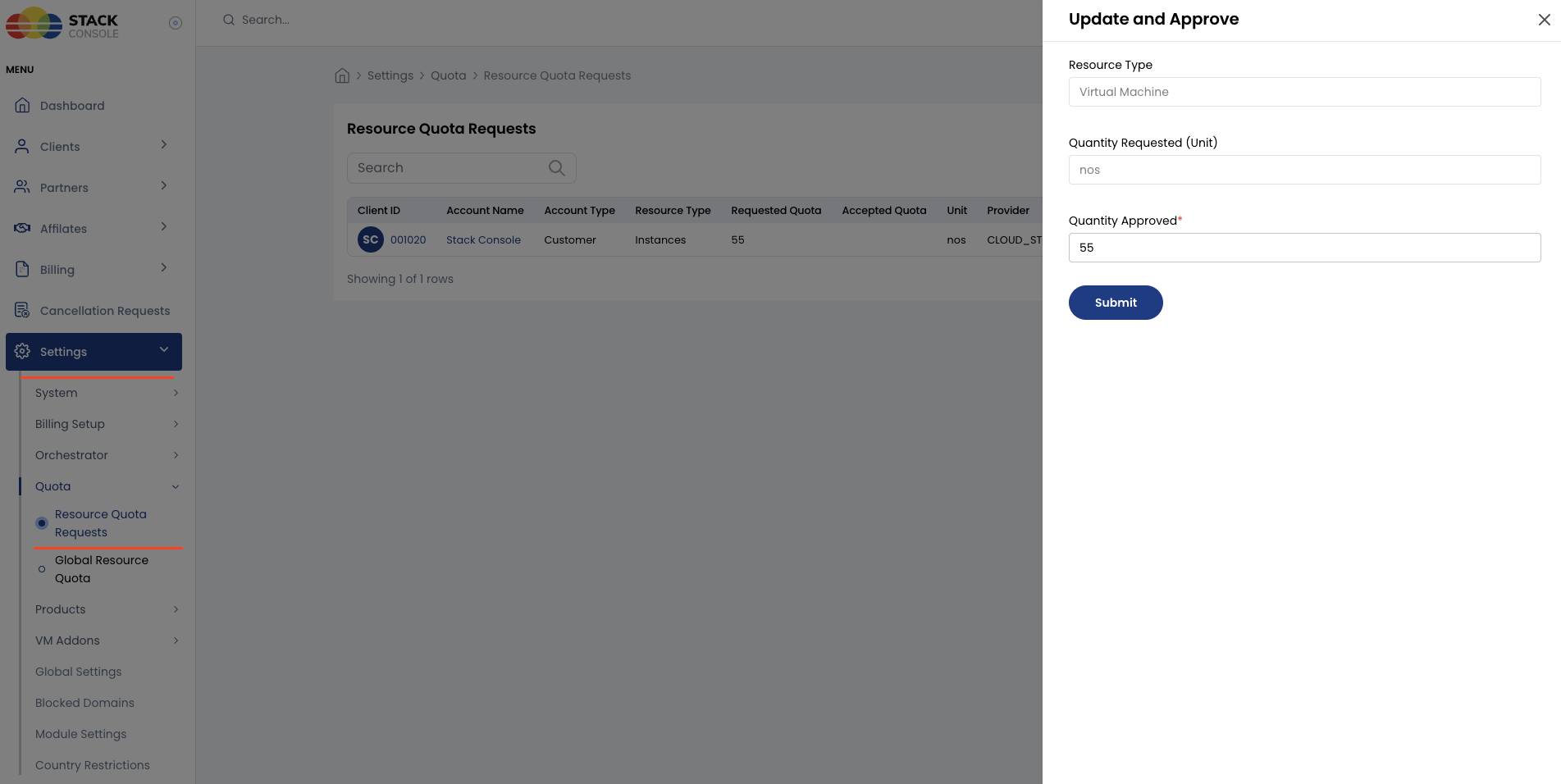
On approval:
- Account-level quota for that resource is updated immediately
- The customer is notified
- The customer can provision within the new account limit
CMP does not automatically raise CloudStack max.account.* / max.project.* values. After approving a large increase, verify CloudStack limits are still ≥ the new CMP account quota (or set to -1).
See Orchestrator-Side Quota Sync and Quota Management (ACS).
Reject a request
- Open the pending request
- From actions, select reject - enter a rejection reason (recommended — so the customer knows what to change)
- Click Reject
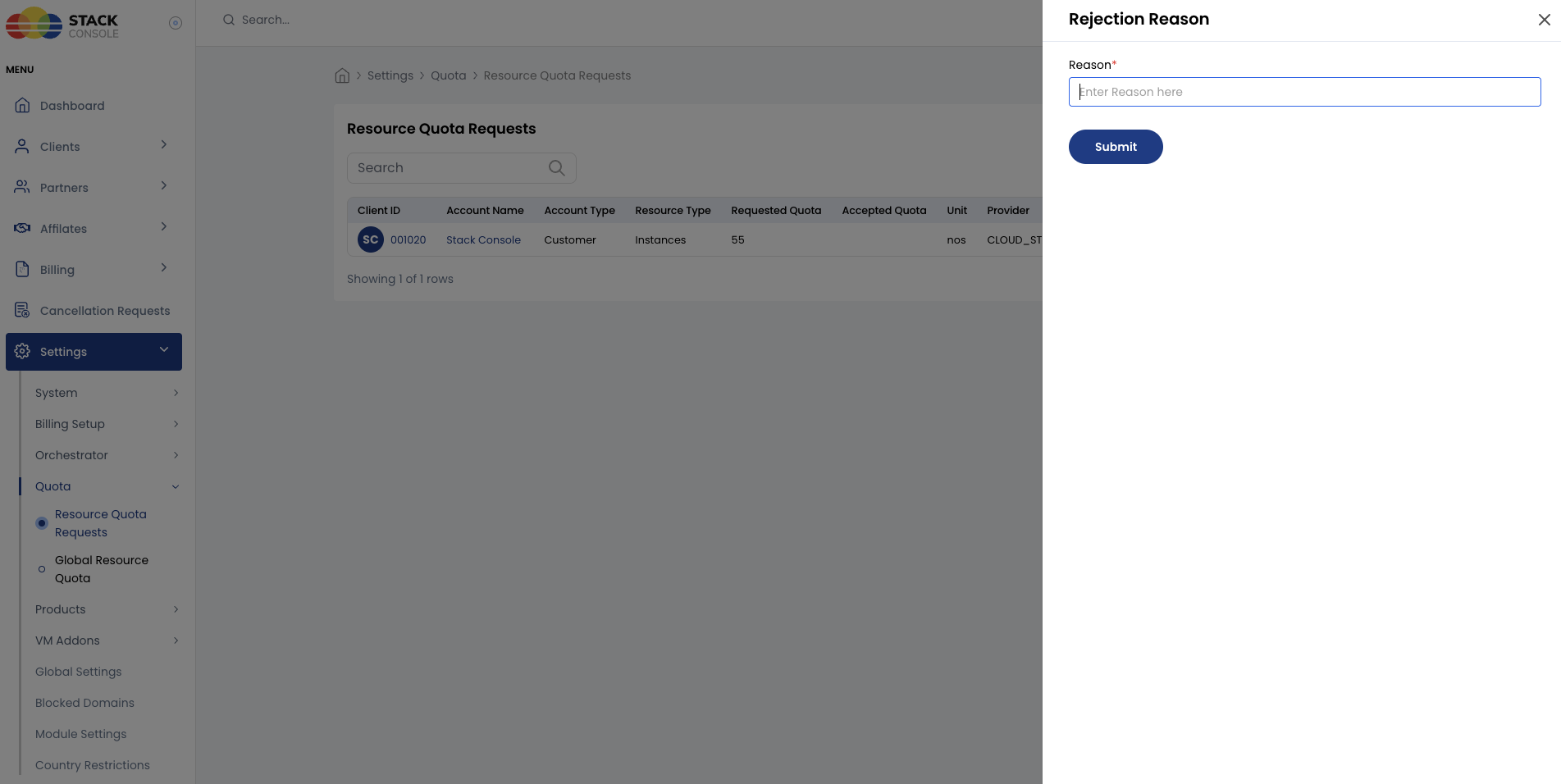
On rejection:
- Account quota stays unchanged
- The customer is notified (with reason)
Admin can also set quota directly
Admins do not have to wait for a customer request. You can raise or lower account limits any time under:
Clients → [Customer] → Quota Settings — see Account-Level Quotas
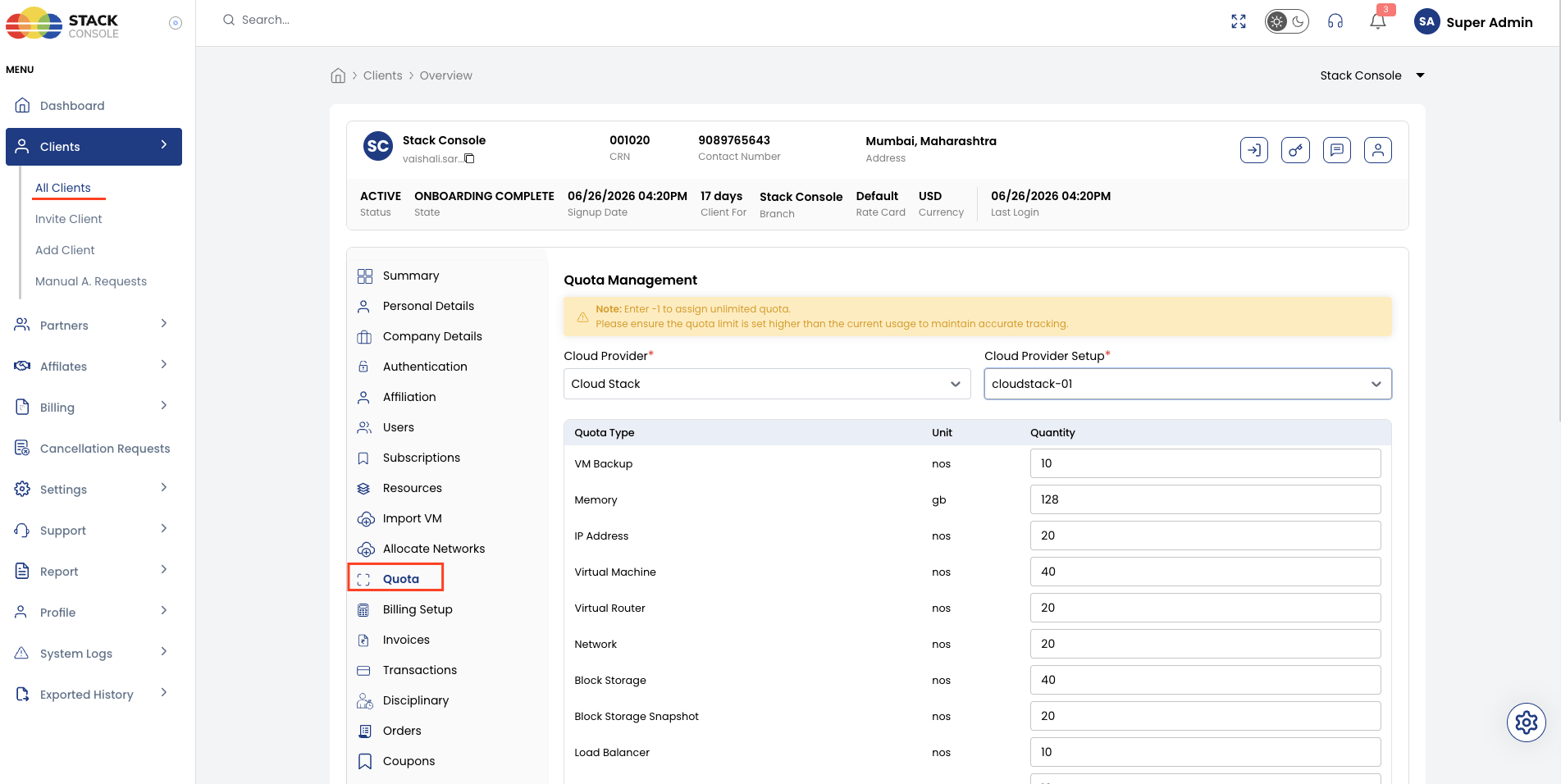
Use direct edit for contract changes, POC limits, or corrections without a portal request.
Notifications
| Event | Who is notified |
|---|---|
| New request submitted | Admin |
| Request approved | Customer |
| Request rejected | Customer |
Exact email/template names depend on your CMP notification configuration.
Best practices
| Practice | Why |
|---|---|
| Review pending requests promptly | Avoid blocking customer provisioning |
| Check current usage before approving | Avoid allocating far more than needed |
| Prefer stepwise increases | Easier to reverse if capacity is tight |
| Document rejection reasons | Reduces repeat unclear requests |
Update CloudStack max.* after large approvals | Prevents orchestrator errors despite CMP success |
| Remind owners about project quotas | Account increase ≠ automatic per-project caps |
Related
- Global Resource Quotas — defaults copied to new accounts
- Account-Level Quotas — ceiling updated by requests or admin
- Project-Level Quotas — owner-managed distribution within the account
- Orchestrator-Side Quota Sync
- Quota Management (ACS)