Volumes Packages
Volumes packages map CloudStack disk offerings to CMP storage tiers. They are used when customers:
- Select root disk size at VM creation (when Enable Override Disk Offering is Yes)
- Purchase additional block storage volumes and attach them to existing VMs
Each volume package is unique per Cloud Provider + Setup + Zone + Storage Category. Configure Storage Settings before creating volume packages.
Ensure the following are already configured:
- Storage Settings are configured for each zone and storage tier (SSD, NVMe, HDD)
- Cloud Provider Setup is connected, with Block Storage and the relevant SSD / NVMe / HDD Storage services enabled in Wizard Step 1
- Enable Override Disk Offering is Yes in Provider Config if volume packages are used for VM root disks
- Zones are mapped in CMP
- Disk offerings exist in CloudStack for each size and storage tier you plan to sell
CMP path: Settings → Billing Setup → Rate Cards → Default → Packages → Volumes
How volumes work in CMP and CloudStack
CMP decouples compute and storage. VM packages define CPU and RAM; volume packages define disk size, storage type, and storage pricing.
| Use case | When it applies |
|---|---|
| Root disk at VM creation | Override disk enabled — customer picks storage tier and size on Create Instance |
| Additional data volume | Customer creates a volume from the Block Storage section and attaches it to a VM |
At provisioning time, CMP passes the disk offering ID from the selected volume package to CloudStack's deployVirtualMachine (root disk) or createVolume (data disk) API.
Disk offering (CloudStack) → Volume package (CMP) → Customer selects tier + size
Refer to the Apache CloudStack disk offerings guide.
CloudStack prerequisites
Create disk offerings in CloudStack before creating CMP volume packages. Disk offerings control size, storage type, storage tags, and optional IOPS limits.
Step 1 — Tag primary storage pools
Tag your primary storage pools so disk offerings target the correct hardware. See Storage Settings — CloudStack prerequisites.
Step 2 — Create predefined disk offerings
Create one disk offering per size × storage tier combination you want to sell as a predefined package.
- Log in to the CloudStack UI with admin privileges
- Navigate to Service Offerings → Disk Offering
- Click Add Disk Offering
- Configure the offering — for example:
- Name:
SSD-100GBorNVMe-500GB - Disk size: Fixed size in GB — for example,
100,500,1000 - Storage type: Shared or Local — match your primary storage pools
- Storage tags: Must match primary storage pool tags — for example,
ssd,nvme,hdd
- Name:
- Optionally set QoS Type to Storage and define Min IOPS / Max IOPS
- Set Public to Yes and assign the target Zone(s)
- Click Add
- Repeat for each size and tier
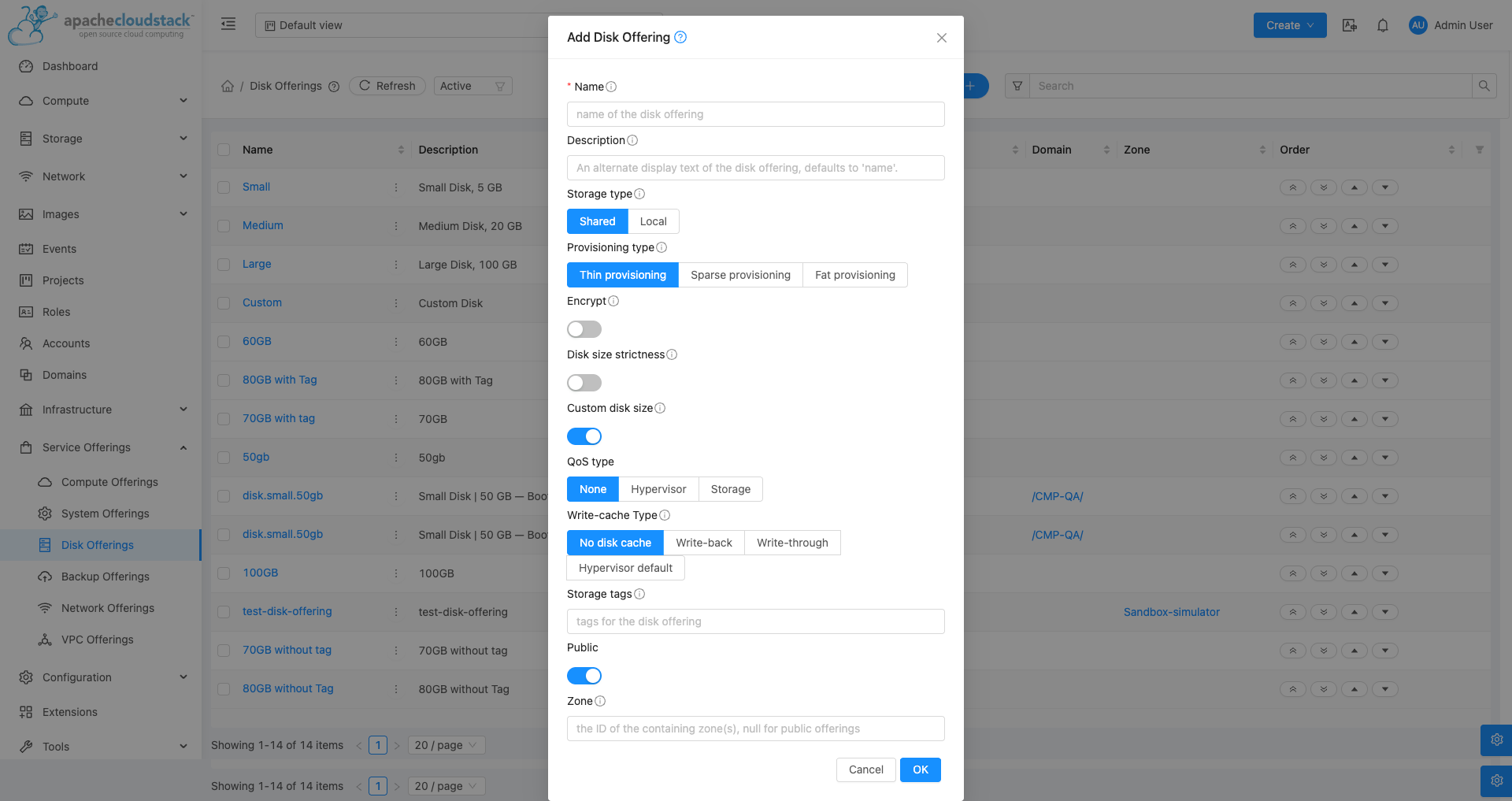
Step 3 — Create custom disk offering (for custom packages)
For customers who enter their own storage size, create one custom / unconstrained disk offering per storage tier.
- Navigate to Service Offerings → Disk Offering → Add Disk Offering
- Enable Custom / Unconstrained Disk Size
- Set Storage tags to match the target tier (
ssd,nvme,hdd) - Set Public to Yes and scope to the target zone
- Copy the offering UUID into the Custom Disk Offering ID field on the matching Storage Settings entry
Custom storage billing uses Unit Pricing when no predefined volume package matches the customer's requested size.
Configure volume packages in CMP
After disk offerings and storage settings exist, create volume packages for each zone × storage category × disk size tier.
- Open Settings → Billing Setup → Rate Cards → Default → Packages → Volumes
- Click Add Package (form title: Create Volumes Package)
- Complete each field below in the order shown on the form
- Set Status to Active and save
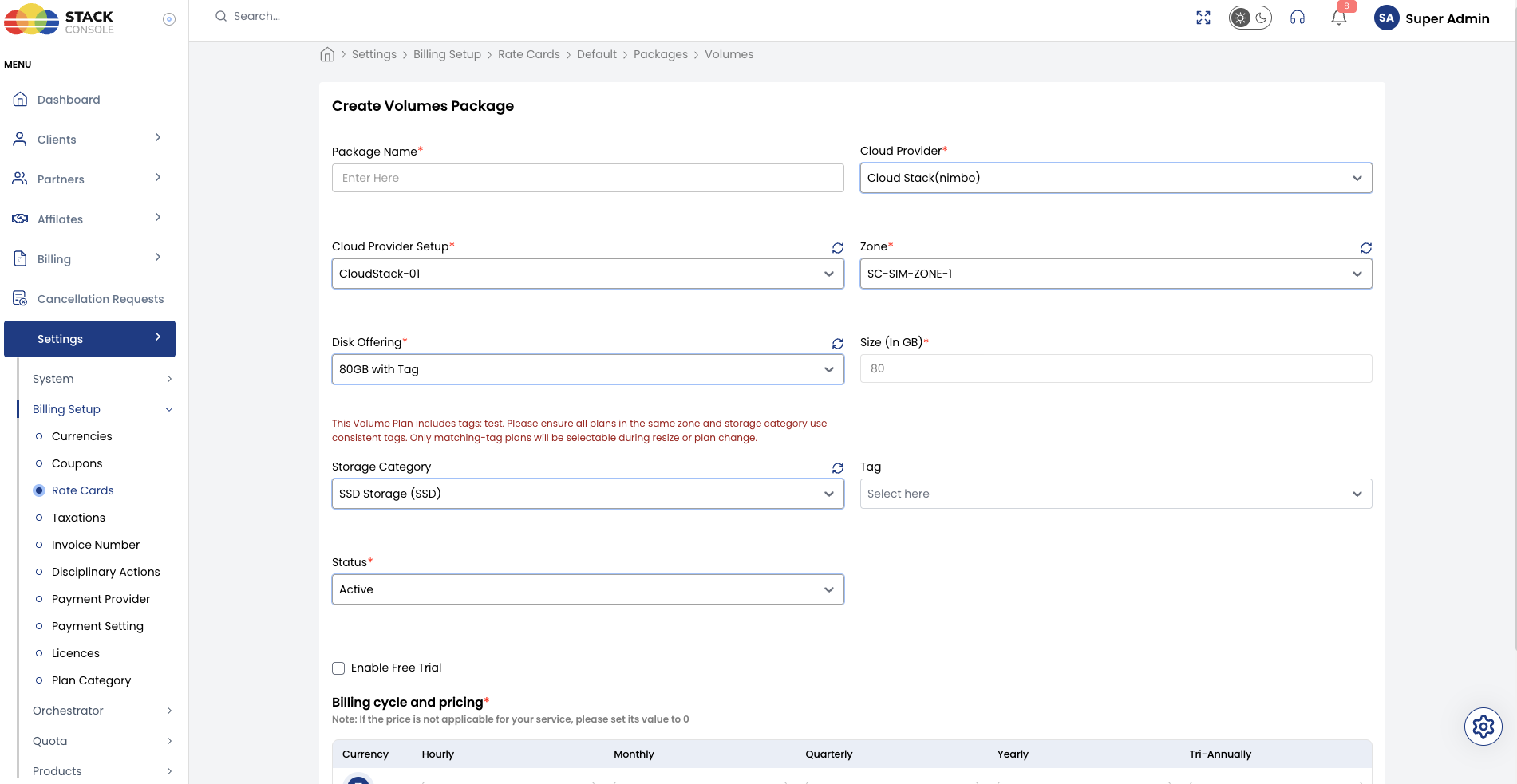
Each field below matches the Create Volumes Package form.
Package Name
Required. Display name for the volume tier — for example, SSD 80 GB or NVMe 500 GB. Customers see this name when selecting root disk or creating data volumes.
Cloud Provider
Required. Select the orchestrator type — for example, CloudStack (Nimbo).
Cloud Provider Setup
Required. Select the CloudStack instance this package belongs to — for example, CloudStack-01.
Zone
Required. Select the CMP zone where this volume package is sold — for example, SC-SIM-ZONE-1.
Create a separate package entry for each zone even when the CloudStack disk offering name is the same.
Disk Offering
Required. Select the CloudStack disk offering that CMP uses when provisioning this package — for example, 80GB with Tag.
The offering must:
- Exist in CloudStack for the selected zone
- Have a fixed disk size matching this package (for predefined packages)
- Use storage tags that match the primary storage pools for the selected storage category
- Be Public and available to the DomainAdmin account CMP uses
After selecting a disk offering, CMP displays a notice listing the offering's storage tags — for example:
This Volume Plan includes tags: testxyz. Please ensure all plans in the same zone and storage category use consistent tags. Only matching-tag plans will be selectable during resize or plan change.
All volume packages in the same zone and storage category must use consistent storage tags on their disk offerings. During volume resize or plan change, customers can only switch to packages whose disk offering tags match the current volume.
Size (In GB)
Required. Disk size in gigabytes — for example, 80, 100, 500.
For predefined packages, this should match the fixed size on the selected Disk Offering. After selecting the offering, this field may auto-populate.
Storage Category
Required. Select the CMP storage classification — for example, SSD Storage (SSD), NVMe, or HDD.
Must match a configured Storage Settings entry for this zone. Volume packages without a valid storage category mapping will not provision on the correct storage pool.
Packages are unique per Cloud Provider + Setup + Zone + Storage Category.
Tag
Optional. Assign a tag for filtering or promotional labelling in the customer portal.
Tags on this field are CMP-level labels used for representation only. They do not map to CloudStack storage tags on the disk offering. CloudStack storage tag consistency is controlled by the Disk Offering selection above.
Status
Required. Controls package visibility.
| Status | Behaviour |
|---|---|
| Active | Package appears on Create Instance (root disk) and Create Volume pages |
| Inactive | Hidden — use while configuring pricing or testing |
Enable Free Trial
Optional. When enabled, customers can provision volumes under this package within a free-trial policy without immediate billing for the trial period.
Billing cycle and pricing
Required. Set the price for each billing cycle and currency CMP supports.
Storage volumes use hourly billing by default in CMP. Enter pricing for each billing cycle you offer.
Define the monthly price first, then derive hourly using Monthly ÷ (30.5 × 24). See Pricing Formulas.
Custom storage unit pricing must be equal to or higher than predefined volume packages for equivalent sizes — see Unit Pricing.
Root disk vs additional volumes
| Volume type | Customer action | CMP behaviour |
|---|---|---|
| Root disk | Selects storage tier and size on Create Instance | CMP passes disk offering from volume package in deployVirtualMachine |
| Data volume | Creates volume from Block Storage and attaches to VM | CMP uses volume package disk offering in createVolume |
Both use the same volume package definitions. Ensure packages exist for every storage tier and size you expose in each zone.
End-to-end mapping example
Goal: Sell SSD 100 GB and SSD 500 GB root disk options in zone SC-SIM-ZONE-1.
CloudStack
- Tag SSD primary storage pool with
ssd - Create disk offering
SSD-100GB— 100 GB, storage tagssd, public, zoneSC-SIM-ZONE-1 - Create disk offering
SSD-500GB— 500 GB, storage tagssd, public, zoneSC-SIM-ZONE-1
CMP — Storage Settings
- Configure storage setting — Display Name
SSD, Storage Category SSD, zoneSC-SIM-ZONE-1 - Set Custom Disk Offering ID to the custom unconstrained SSD disk offering UUID
CMP — Volume Packages
- Open Packages → Volumes → Add Package
- Set Cloud Provider CloudStack (Nimbo), Cloud Provider Setup
CloudStack-01, Package NameSSD 100 GB, ZoneSC-SIM-ZONE-1 - Set Disk Offering
SSD-100GB, Size (In GB)100, Storage Category SSD Storage (SSD) - Enter pricing and set Status to Active
- Repeat for
SSD 500 GB— Disk OfferingSSD-500GB, Size (In GB)500
Customers on Create Instance see SSD storage options and select root disk size. Additional volumes use the same packages from the Block Storage section.
Customer portal view
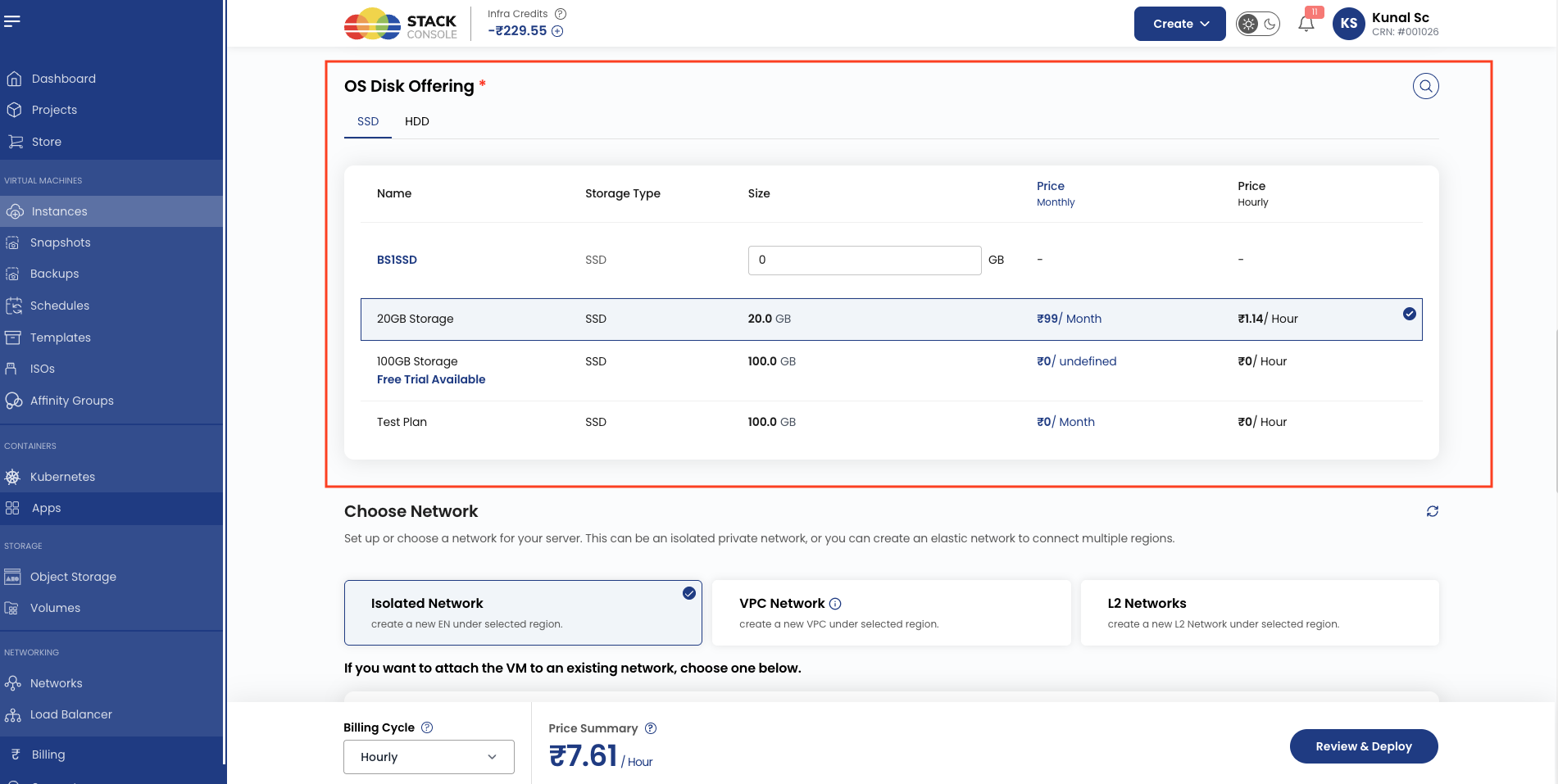
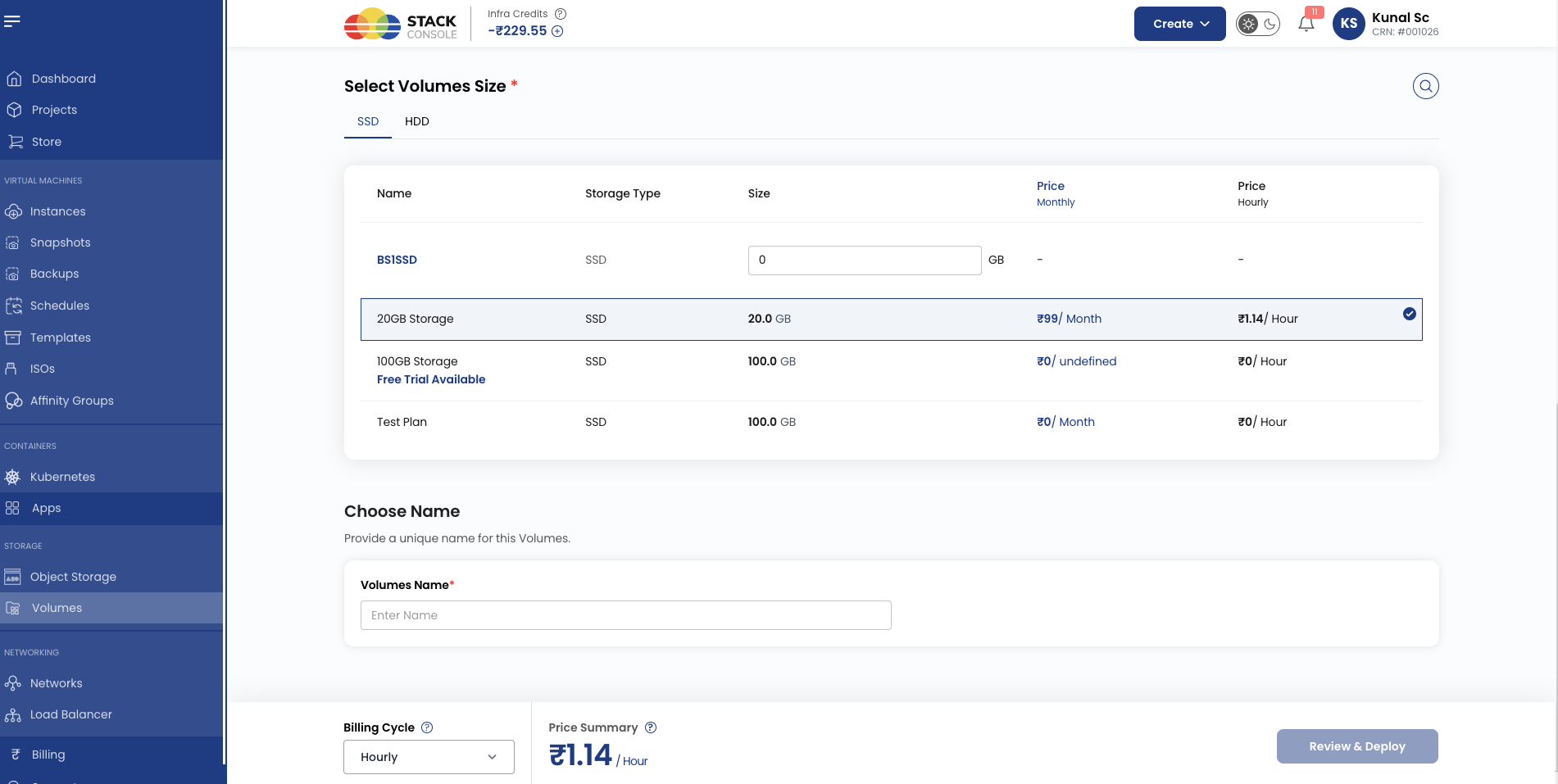
When multiple storage categories are configured, customers see storage tabs on Create Instance and Create Volume.
If override root disk is enabled, at the time of VM creation.
At the time of datadisk/additional volume creation.
Validation checklist
Before marking a volume package Active, verify:
- Storage Settings exist for the zone and storage category
- Block Storage and the relevant SSD / NVMe / HDD Storage services are enabled in Cloud Provider Setup
- CloudStack disk offering exists with matching size, storage tags, zone, and public visibility
- Disk Offering maps to the correct CloudStack disk offering
- Size (In GB) matches the CloudStack offering
- All volume packages in the same zone and storage category use consistent disk offering tags (required for resize and plan change)
- Storage Category matches the storage settings entry
- Unit Pricing is configured for custom storage if custom packages are offered
- Pricing is configured for each supported currency and billing cycle
- Global quotas allow sufficient SSD Storage / Block Storage for customer accounts