VM Backup Packages
VM Backup packages define how CMP bills customers for virtual machine backups (BACKUP). When a customer creates or retains a VM backup, CMP charges based on the backup size in GB and the per-GB hourly rate configured in this package.
VM backup billing uses hourly per-GB pricing only — the same model as Volumes Snapshot, Custom Template, and ISO packages.
Ensure the following are already configured:
- Cloud Provider Setup is connected, with Backups → Virtual Machine Backup enabled in Wizard Step 1
- Zones are mapped in CMP
- You have chosen a backup backend — CMP built-in snapshot backup or CloudStack native backup
- For CloudStack native backup, the backup provider plugin is installed and
backup.framework.enabled = truein CloudStack — see CloudStack Backup and Recovery - You understand physical vs virtual size billing before setting package pricing
CMP path: Settings → Billing Setup → Rate Cards → Default → Packages → VM Backup
Two backup backends
CMP supports two VM backup approaches, controlled by Enable Provider Backup in Cloud Provider Setup — Provider Config:
| Mode | Enable Provider Backup | Backend | When to use |
|---|---|---|---|
| CMP built-in backup | No | CMP scheduled snapshot system on top of CloudStack snapshots | CloudStack versions before 4.20, or environments without a native backup plugin |
| CloudStack native backup | Yes | CloudStack B&R framework with a 3rd-party provider plugin | CloudStack 4.14+ with Veeam, Networker, or NAS plugin configured |
Disable one backup type before enabling the other on a VM. See Switching from CMP snapshot-based to CloudStack native backup.
CMP built-in backup
When Enable Provider Backup is No, CMP uses its built-in scheduled snapshot system. See Snapshot & Backup (pre-4.20) for behaviour, retention, and KVM snapshot requirements.
Billing is based on backup storage size using the VM Backup package hourly per-GB rate.
CloudStack native backup
When Enable Provider Backup is Yes, VM backups are managed through CloudStack's Backup and Recovery (B&R) framework. Supported provider plugins include:
| Hypervisor | Provider | CloudStack version |
|---|---|---|
| VMware | Veeam Backup and Recovery | 4.14+ |
| KVM | DELL EMC Networker | 4.14+ |
| KVM | NAS B&R Plugin | 4.20+ |
Official reference: About Backup And Recovery
CloudStack administrators must:
- Set
backup.framework.enabled = truein CloudStack Global Settings - Configure
backup.framework.provider.pluginper zone (veeam,networker, ornas) - Import backup offerings from the provider into CloudStack (Service Offerings → Backup Offerings → Import Backup Offering)
- Enable Enable Provider Backup in CMP Cloud Provider Setup
See also CloudStack Native Backup (v4.20+).
How VM backup billing works
Each VM backup is billed individually on an hourly basis for as long as it is retained.
VM backup cost per hour = backup size (GB) × price per GB per hour
Example: A backup consuming 50 GB at $0.10/GB/hour costs $5.00/hour until it is deleted.
- Manual backups — one charge per backup from creation until deletion
- Scheduled backups — each backup created by the schedule is charged separately. Retention policy controls how many backups are kept; older backups are removed when the limit is exceeded, which stops billing for those backups
VM backups (BACKUP) always use hourly billing only. Monthly, quarterly, and yearly cycles are not supported. See Billing Cycles.
Customers can create VM backups manually or via CMP's backup scheduler with a retention policy. A dedicated page for backup scheduling, retention, and restore workflows will be added later.
Physical vs virtual size billing
When pricing VM backups — especially with CloudStack native backup — the billed size depends on whether the configured backup provider reports physical (actual stored) backup size to CloudStack and how VM Backup Billing is set in CMP Cloud Provider Setup.
In Settings → Orchestrator → Cloud Providers → [setup] → Provider Config, locate VM Backup Billing:
| Setting | Description |
|---|---|
| VM Backup Billing | Determines whether CMP charges use physical (actual backup storage consumed) or virtual (provisioned disk) size |
The CloudStack Backup and Recovery guide states that adhoc and scheduled backups may be billed on backup storage consumed or protected capacity (the full virtual size of the instance) — indicating the billing model depends on the backup solution, not a single fixed rule.
CloudStack also uses physical used size (falling back to virtual size) for internal resource limits on backups — this is not documentation that a specific backup plugin exposes physical size for customer billing.
The CloudStack docs do not explicitly state that Veeam, Networker, or NAS plugins report physical backup size via API. Do not assume physical size billing is available for a provider without verifying it in your environment.
Physical size billing
Set VM Backup Billing to physical when the backup provider reports actual backup storage consumed to CloudStack and CMP receives that value.
Customers are billed for the actual data stored in the backup, not the provisioned virtual disk size.
Example: A VM with 200 GB provisioned storage but only 30 GB physically stored in the backup is charged for 30 GB only.
Physical size billing is available when the configured backup provider reports actual backup storage consumed to CloudStack. If physical usage information is unavailable, CMP falls back to virtual (provisioned) size according to the configured billing mode.
Verify physical size reporting in your environment before enabling physical billing — provider behaviour can vary by version and configuration.
If VM Backup Billing is set to physical in Cloud Provider Setup but CMP does not receive physical backup size from CloudStack, billing falls back to virtual (provisioned) size. Customers may be charged for the full provisioned disk capacity even though physical billing is selected. Verify physical size reporting works end-to-end before relying on physical billing in production.
Virtual size billing
Set VM Backup Billing to virtual when you want to charge based on provisioned disk size, or when the backup provider does not report physical backup usage to CloudStack.
Customers are billed for the full provisioned virtual disk size of the backed-up VM volumes.
Example: A VM with 200 GB provisioned storage is charged for 200 GB, regardless of how much data is actually written on disk.
Choosing a billing mode
| Mode | When to use |
|---|---|
| Physical | Provider reports actual backup storage consumed; you want customers charged for real backup footprint |
| Virtual | Provider does not report physical size, or you prefer charging against provisioned/protected capacity |
When physical size billing is confirmed for your provider, set your per-GB hourly rate considering that customers will typically be charged for less than the VM's provisioned disk size. When billing uses virtual size, price against the full provisioned capacity customers expect to back up.
Configure VM Backup packages in CMP
Create a VM Backup package for each Cloud Provider + Setup + Zone where you want to charge for VM backups.
The form fields shown depend on your backup backend. When Enable Provider Backup is No (CMP built-in backup), the Backup Offering ID field is not shown. It appears only when Enable Provider Backup is Yes (CloudStack native backup).
- Open Settings → Billing Setup → Rate Cards → Default → Packages → VM Backup
- Click Add Package (form title: Create VM Backup Package)
- Complete each field below in the order shown on the form
- Set Status to Active and save
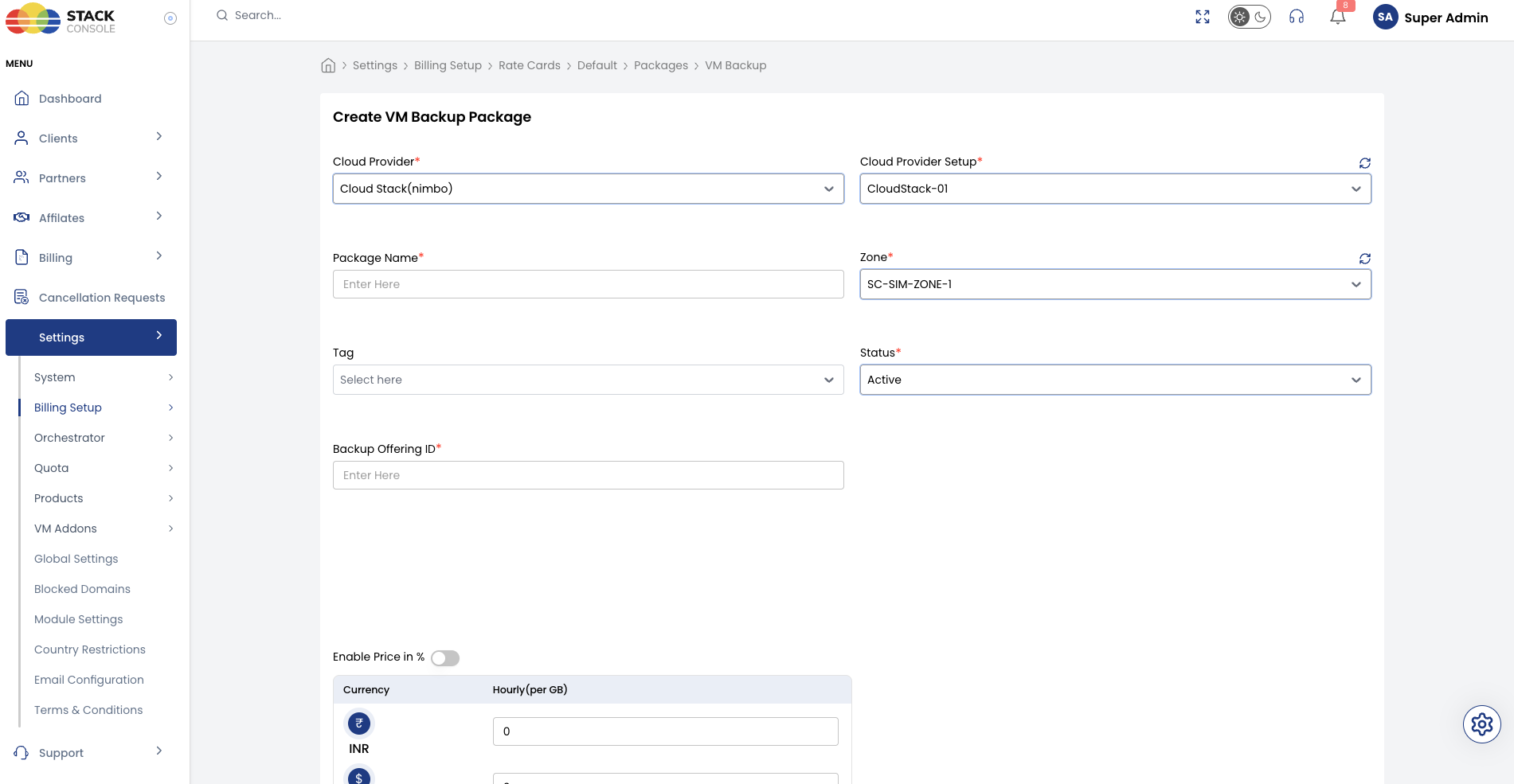
Each field below matches the Create VM Backup Package form.
Cloud Provider
Required. Select the orchestrator type — for example, CloudStack (Nimbo).
Cloud Provider Setup
Required. Select the CloudStack instance this package belongs to — for example, CloudStack-01.
Package Name
Required. Display name for the VM backup service — for example, VM Backup or Instance Backup.
Zone
Required. Select the CMP zone where this backup pricing applies — for example, SC-SIM-ZONE-1.
Tag
Optional. Assign a tag for filtering or promotional labelling in the customer portal.
Tags are CMP-level labels used for representation only. They do not map to CloudStack tags.
Status
Required. Controls package visibility.
| Status | Behaviour |
|---|---|
| Active | Backup package is available when customers create or retain VM backups in this zone |
| Inactive | Hidden — use while configuring or testing |
Backup Offering ID
Required when Enable Provider Backup is Yes. Not shown on the form when using CMP built-in backup (Enable Provider Backup = No).
Enter the CloudStack backup offering ID that this CMP package maps to.
Obtain the ID after importing a backup offering in CloudStack:
- Log in to the CloudStack UI as root admin
- Navigate to Service Offerings → Backup Offerings
- Import the offering from your backup provider (Import Backup Offering) — see Importing Backup Offerings
- Copy the offering ID (UUID) and paste it into this field
The Backup Offering ID links the CMP package to the CloudStack backup policy/offering customers are assigned to when using CloudStack native backup.
The Create VM Backup Package form does not include monthly or yearly pricing fields. VM backups (BACKUP) use hourly billing only. CMP calculates charges based on backup size (physical or virtual — per VM Backup Billing) and the hourly per-GB rate defined in your rate card for this package type.
End-to-end example
Goal: Charge for VM backups in zone SC-SIM-ZONE-1 using CloudStack native backup with NAS plugin and physical size billing.
CloudStack
- Set
backup.framework.enabled = true - Set
backup.framework.provider.plugintonasfor the zone - Import backup offerings from the NAS provider
- Test adhoc backup and restore on a non-production VM
CMP — Cloud Provider Setup
- Enable Backups → Virtual Machine Backup in Wizard Step 1
- Set Enable Provider Backup to
Yesin Provider Config - Set VM Backup Billing to physical in Provider Config (verify NAS plugin reports physical backup size in your environment)
CMP package
- Open Packages → VM Backup → Add Package
- Set Cloud Provider CloudStack (Nimbo), Cloud Provider Setup
CloudStack-01, Package NameVM Backup, ZoneSC-SIM-ZONE-1 - Set Backup Offering ID to the UUID of the NAS backup offering imported in CloudStack
- Set Status to Active and save
A customer with a 200 GB VM whose backup physically consumes 30 GB is charged 30 × 0.10 = $3.00/hour when physical size billing is active.
Customer portal view
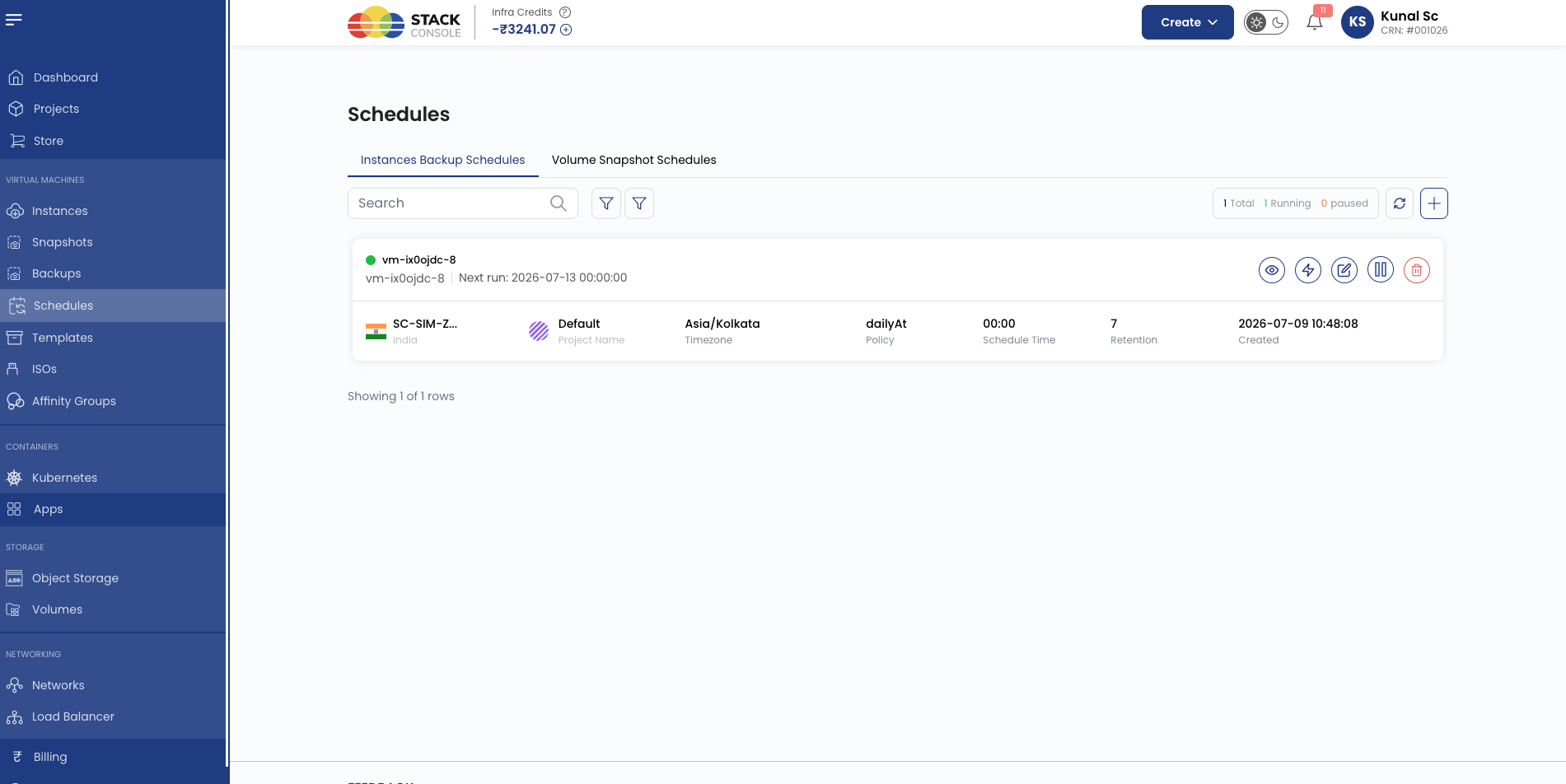
Customers can protect VMs using two approaches:
| Method | Description |
|---|---|
| Manual backup | Create a one-time VM backup from the instance actions menu |
| Scheduled backup | Configure a recurring backup schedule with frequency, timezone, and Max. Snapshots/Backups to retain |
Each retained backup is billed individually at the zone's per-GB hourly rate. When retention removes old backups, billing stops for those backups.
Validation checklist
Before marking a VM Backup package Active, verify:
- Backups → Virtual Machine Backup is enabled in Cloud Provider Setup (Wizard Step 1)
- Enable Provider Backup matches your intended backend (CMP built-in vs CloudStack native)
- For native backup: CloudStack B&R framework and provider plugin are configured — see Backup and Recovery
- For CloudStack native backup (
Enable Provider Backup=Yes): Backup Offering ID matches a backup offering imported in CloudStack for the target zone - VM Backup Billing (physical vs virtual) matches your provider's capabilities — verify physical size reporting before enabling physical billing
- For CMP built-in backup:
kvm.snapshot.enabled = trueif required on KVM — see Snapshot & Backup - Global quotas and CloudStack backup limits allow sufficient backup count per account