Virtual Machine Packages
Virtual Machine (VM) packages define the compute bundles (vCPU and RAM) that customers select when provisioning instances. Each predefined package in CMP maps to one CloudStack compute offering through the Select Offering field.
Storage is configured separately — root disk size and pricing use Volumes packages when the override disk option is enabled (recommended).
Ensure the following are already configured:
- Cloud Provider Setup is connected, with Enable Override Disk Offering set to Yes (recommended)
- Zones are mapped in CMP for each datacenter region
- Templates are configured for the zones where packages will be sold
- Compute offerings exist in CloudStack for each package size you plan to sell
CMP path: Settings → Billing Setup → Rate Cards → Default → Packages → Virtual Machine
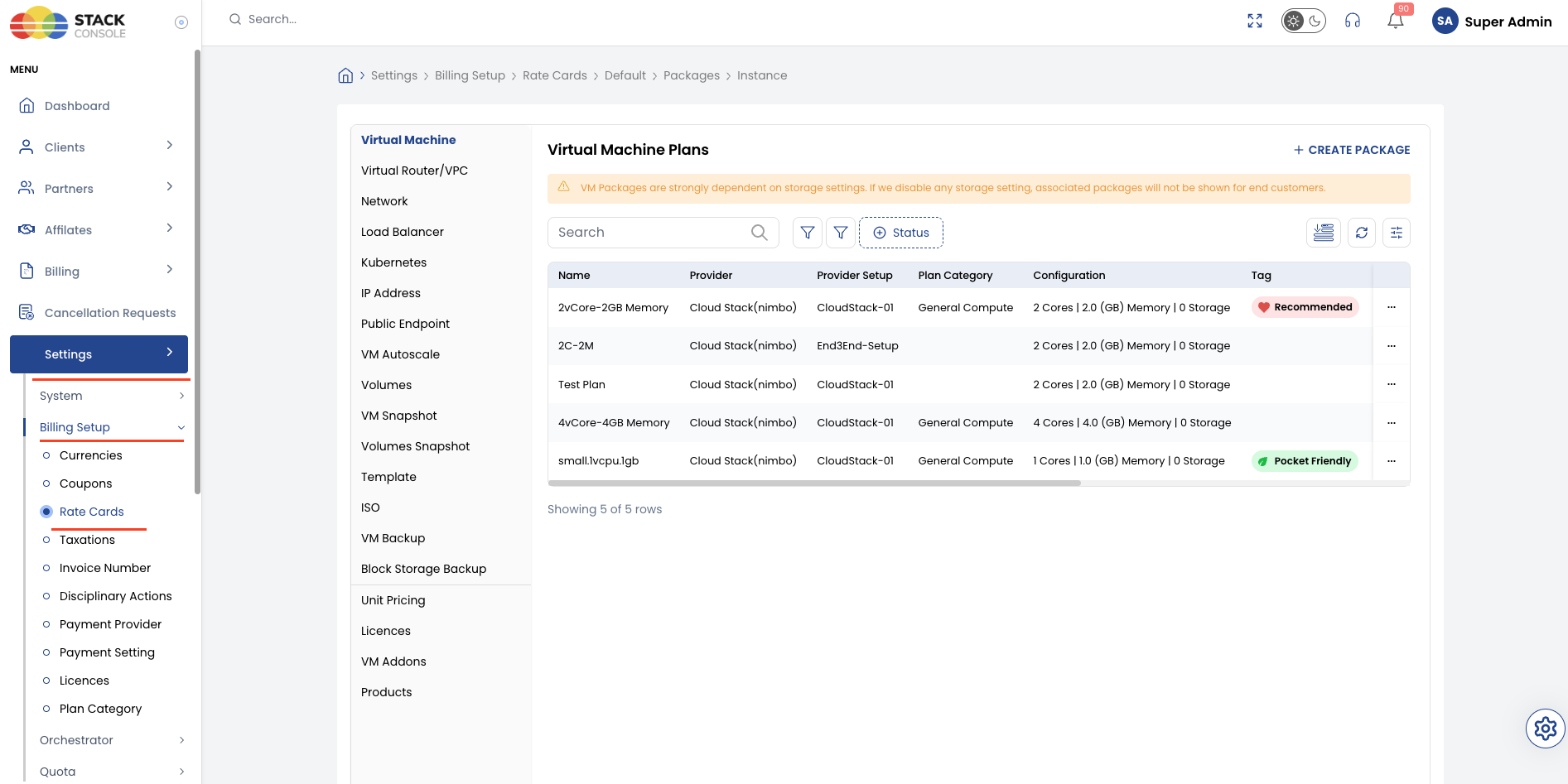
CloudStack compute offering requirements
CMP provisions predefined VM packages using fixed CloudStack compute offerings. The offering selected in CMP (Select Offering) must match the vCPU and RAM defined on the package.
For background on compute offering types, see the Apache CloudStack compute offering guide.
Use compute-only offerings
Using compute-only offerings (no storage bundled in the compute offering) is recommended. CMP also supports compute offerings that include storage — but only one model can be active at a time.
- Compute-only + override disk — storage billed separately via volume packages (recommended)
- Storage bundled in compute offering — storage included in the compute offering
You cannot switch between these models after go-live. Choose the approach during initial Cloud Provider Setup (Wizard Step 2 — Enable Override Disk Offering) before creating production packages.
Fixed offerings for predefined packages
Create one fixed compute offering in CloudStack for each predefined package tier you sell — for example, 2vCore-2GB Memory for a 2 vCPU / 2 GB RAM package.
| CloudStack setting | CMP requirement |
|---|---|
| Compute Offering Type | Fixed offering — CPU and RAM are predefined |
| # of CPU cores | Must match vCore CPU on the CMP package |
| Memory (in MB) | Must match Memory (In MB) on the CMP package |
| CPU (in MHz) | Set to a valid speed for your hypervisor hosts (for example, 2000 MHz). Must align with Custom Compute CPU Speed in Cloud Provider Setup when using custom packages |
| Root disk / storage | Not included in the offering — use compute-only configuration |
| Public | Yes — offering must be visible to the DomainAdmin account CMP uses |
| Zone | Available in the same zone mapped in CMP |
Example: for package 2vCore-2GB Memory, create a CloudStack offering named 2vCore-2GB Memory with 2 CPU cores and 2048 MB RAM, scoped to the target zone.
CloudStack Offering scope and visibility
- Scope each offering to the correct zone(s) — offerings not available in a zone cannot be used for packages in that zone
- Mark offerings Public (or assign them to the CMP DomainAdmin domain) so they appear in the Select Offering dropdown
- CloudStack does not allow material changes to an offering after creation — plan CPU/RAM values before creating production offerings
Creating a compute offering in CloudStack
Follow the steps in Compute-only with override disk (recommended) or Storage bundled in compute offering depending on the model chosen at initial CMP setup.
For each predefined package tier, repeat the CloudStack steps with matching CPU and RAM values. Offering names should be clear — CMP admins select them from the Select Offering dropdown when creating packages.
Compute-only with override disk (recommended)
Use this model when storage is billed separately through CMP Volumes packages and customers choose root disk size at provisioning time.
CloudStack — create the compute offering
- Log in to the CloudStack UI with admin privileges
- Navigate to Service Offerings → Compute Offering
- Click Add Compute Offering
- Set Compute Offering Type to Fixed offering
- Enter Name, # of CPU cores, CPU (in MHz), and Memory (in MB) — for example,
2vCore-2GB Memorywith 2 cores and 2048 MB RAM - Enable Compute only Disk Offering
- CloudStack shows a disk section and creates an internal compute-only disk offering linked to this compute offering. Set Storage type and Storage tags to values compatible with your primary storage pools — this satisfies CloudStack's compute-only offering model. You do not set customer root disk size here.
- Set Public to Yes and select the target Zone(s)
- Click Add
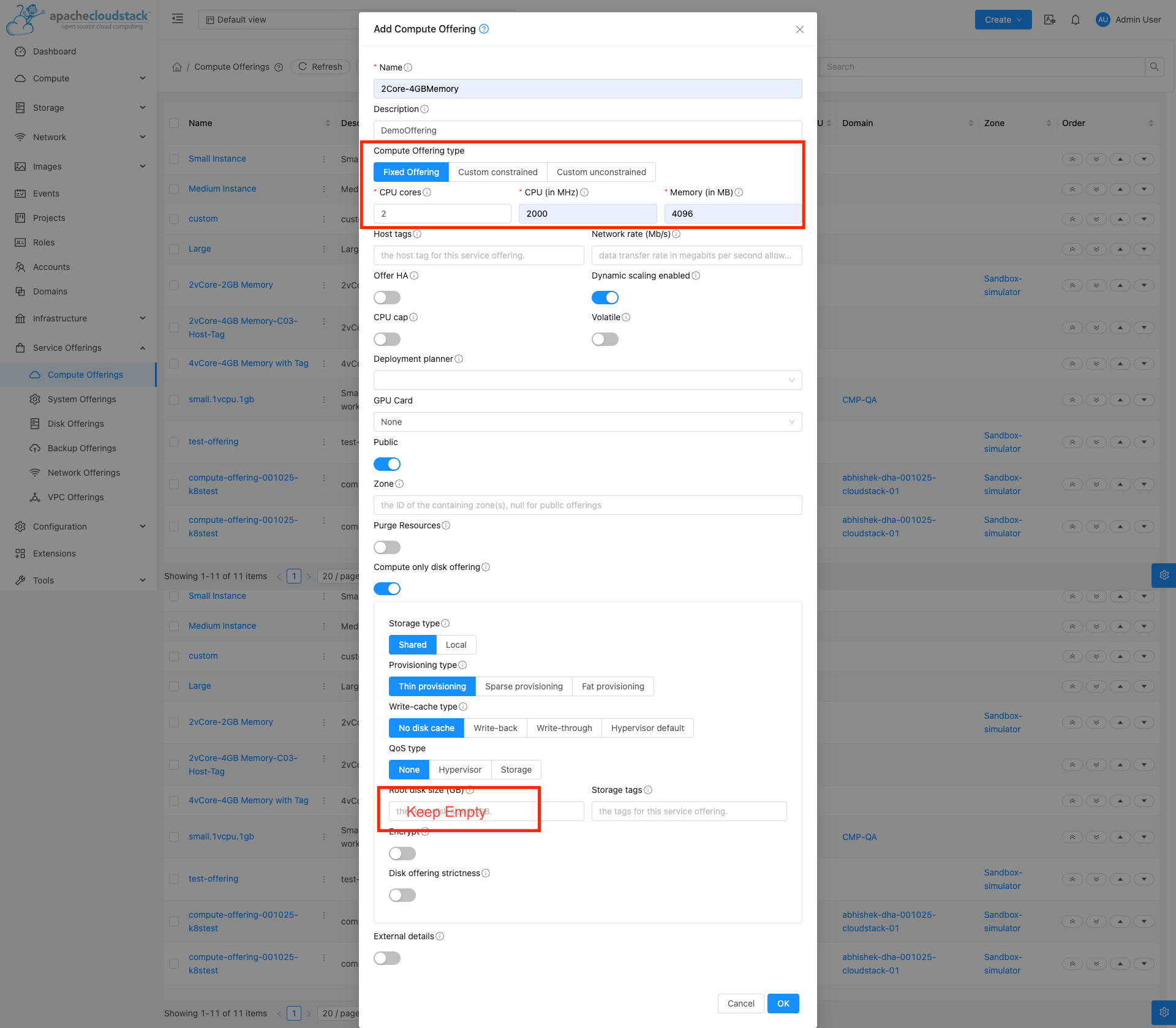
These are two different objects in CloudStack:
| Object | Created where | Used for |
|---|---|---|
| Compute offering | Service Offerings → Compute Offering | CPU and RAM — mapped in CMP VM package (Select Offering) |
| Disk offering | Service Offerings → Disk Offering | Root disk size, storage type, tags, IOPS — mapped in CMP Volumes packages |
When Enable Override Disk Offering is Yes in CMP, VM creation works like this:
- CMP provisions using the compute offering from the VM package (vCPU + RAM only).
- CMP passes a separate disk offering in the
deployVirtualMachinerequest for the root volume — the one linked to the customer's selected storage / volume package. - Root disk size, storage type, and tags at deploy time come from that disk offering, not from the compute-only disk metadata on the compute offering.
The compute-only disk section on the compute offering is a CloudStack linkage requirement — it does not replace your volume disk offerings and is not what CMP bills for storage.
Create separate disk offerings under Service Offerings → Disk Offering for root and data volumes (including a custom disk offering if customers should pick disk size). Map those disk offerings to CMP volume packages — see Volumes.
CMP — enable override disk
During Cloud Provider Setup (Wizard Step 2 — Provider Config), set Enable Override Disk Offering to Yes.
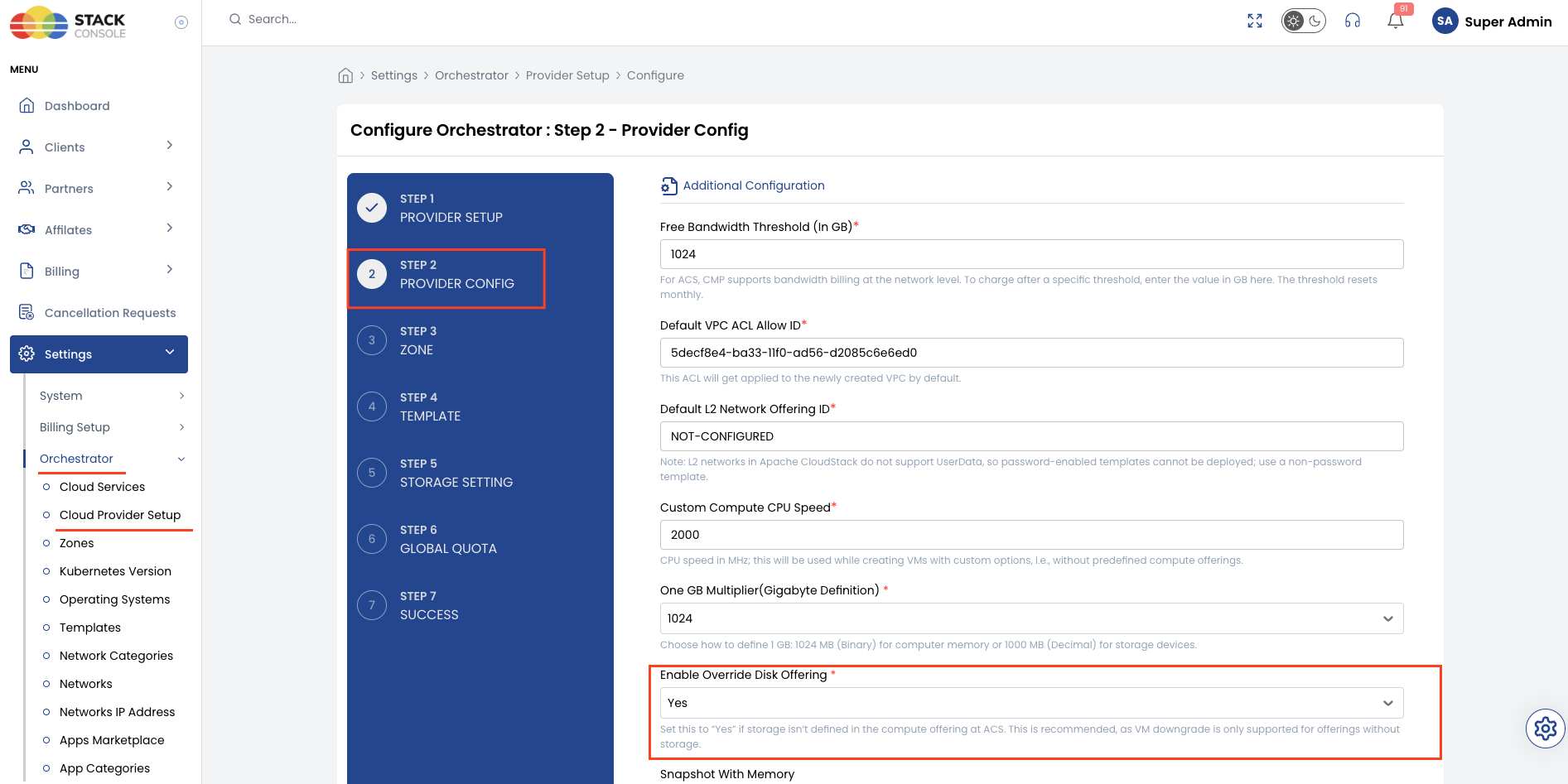
When override disk is enabled, CMP passes a disk offering at VM creation time instead of using storage embedded in the compute offering. Root disk pricing comes from volume packages, not the VM package.
Storage bundled in compute offering
Use this model only when you intentionally bundle a fixed root disk size inside the CloudStack compute offering and do not want customers to select root disk size separately in CMP.
Choose storage-bundled compute offerings only if you accept combined compute + storage billing in a single VM package, no VM downgrade by package resize, and no stoppable-service CPU/RAM pause for bundled storage. Most deployments should use compute-only + override disk instead.
CloudStack — create the compute offering
-
Log in to the CloudStack UI with admin privileges
-
Navigate to Service Offerings → Compute Offering
-
Click Add Compute Offering
-
Set Compute Offering Type to Fixed offering
-
Enter Name, # of CPU cores, CPU (in MHz), and Memory (in MB)
-
Leave Compute only Disk Offering disabled
-
Choose one of the following for root disk:
- Link an existing disk offering — select a Disk Offering from the list and set Disk Offering Strictness as required. The linked disk offering defines the root disk size bundled with this compute package.
- Create disk offering inline — click Add Disk Offering, define Disk Size (in GB), Storage type, and Storage tags, then associate it with the compute offering.
-
Set Public to Yes and select the target Zone(s)
-
Click Add
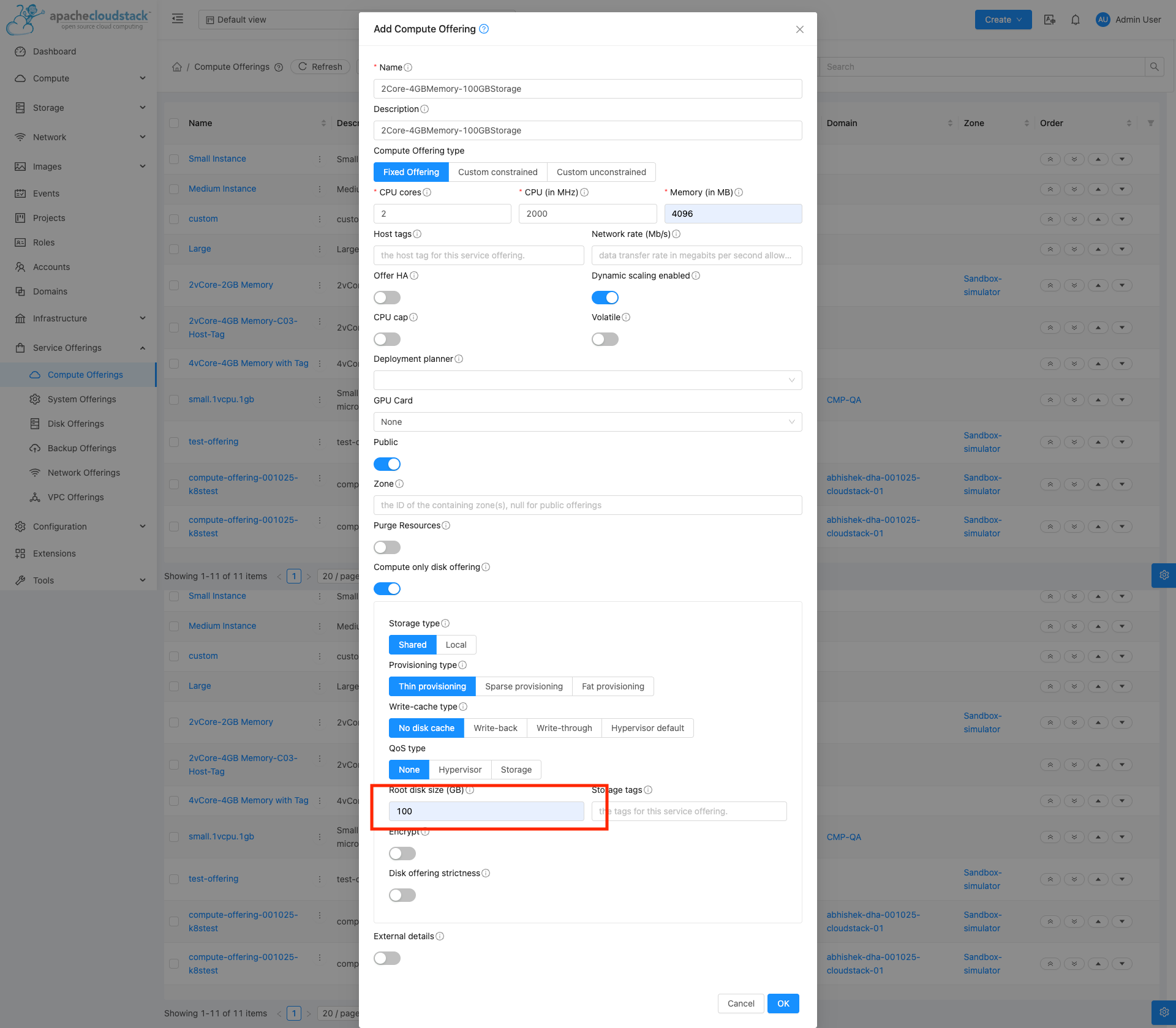
The root disk size is fixed by the linked disk offering. Customers cannot change root disk size independently during CMP provisioning when this model is in use.
CMP — disable override disk
During Cloud Provider Setup (Wizard Step 2 — Provider Config), set Enable Override Disk Offering to No.
CMP uses the storage defined inside the CloudStack compute offering. VM package pricing should reflect both compute and bundled storage — you cannot split storage charges to volume packages with this model.
Whether storage is bundled in the compute offering is a one-time infrastructure decision. Bundling storage in CloudStack compute offerings prevents separate storage billing, VM downgrade support, and stoppable-service CPU/RAM pause behaviour in CMP. Use compute-only offerings before going to production unless you have a specific reason to bundle storage.
Configure VM packages in CMP
After compute offerings exist in CloudStack, create a matching VM package in CMP for each Cloud Provider + Setup + Zone + Storage Category combination.
CMP path: Settings → Billing Setup → Rate Cards → Default → Packages → Virtual Machine → Add Package
Each field below matches the Create VM Package form.
Package Name
Required. Display name for the package — for example, 2vCore-2GB Memory. Use a label customers will recognize on the Create Instance page.
Cloud Provider
Required. Select the orchestrator type — for example, CloudStack (Nimbo).
Cloud Provider Setup
Required. Select the CloudStack instance this package belongs to — for example, CloudStack-01. The Select Offering dropdown lists compute offerings available on this setup.
Zone
Required. Select the CMP zone where this package is sold. The package appears on the Create Instance page only for this zone.
Packages are unique per Cloud Provider + Setup + Zone + Storage Category. Create a separate package entry for each zone even when the CloudStack offering name is the same.
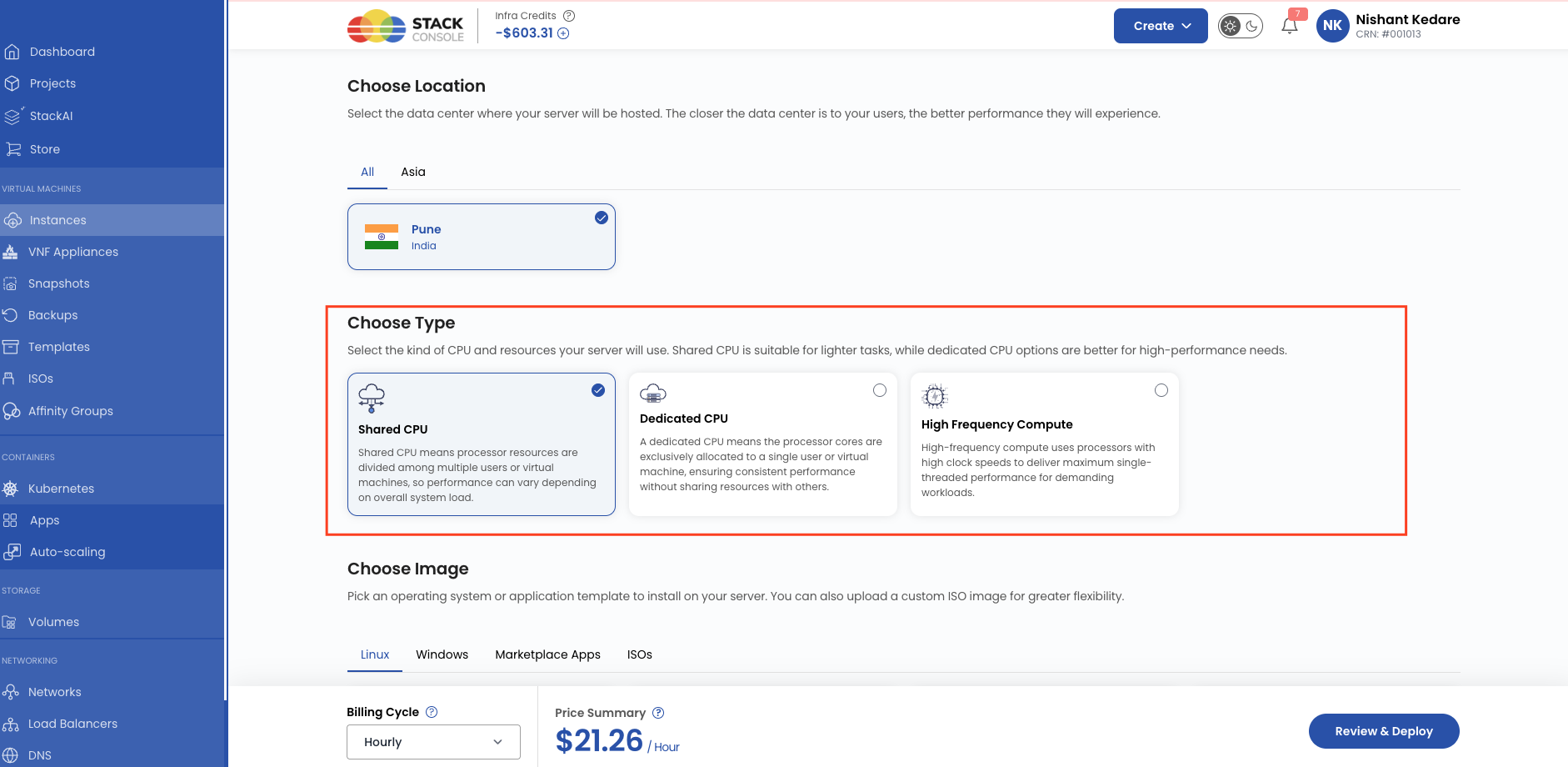
Compute Category
Optional when compute categories are disabled. Required when compute categories are enabled in CMP. Assign a compute category that matches the templates and offerings you expose in that zone.
Packages without a compute category do not appear on the Create Instance page when compute categories are enabled.
Apply compute categories consistently across related templates, offerings, and packages in the same zone.
Compute Categories are displayed during VM creation to filter the available VM packages. Selecting a category shows only the VM packages associated with that compute category.
The following screenshot illustrates how compute categories are presented during VM creation and how they filter the available VM packages.
Select Offering
Required. Select the CloudStack compute offering that CMP uses when provisioning this package.
This field maps the CMP package to the orchestrator. The offering must:
- Exist in CloudStack for the selected zone
Select OS Family
Required. Choose which operating system families this package supports — for example, All, or a specific family such as Linux or Windows. Customers see this package only when provisioning templates from the selected OS family.
vCore CPU (in Numbers)
Required. Number of vCPU cores for this package. After selecting CloudStack offering this will gets auto populated with read only.
Memory (In MB)
Required. RAM in megabytes — for example, 2048 for 2 GB. After selecting CloudStack offering this will gets auto populated with read only.
Status
Required. Controls package visibility.
| Status | Behaviour |
|---|---|
| Active | Package appears on the Create Instance page (subject to compute/plan category rules) |
| Inactive | Package is hidden from customers — use while configuring pricing or testing |
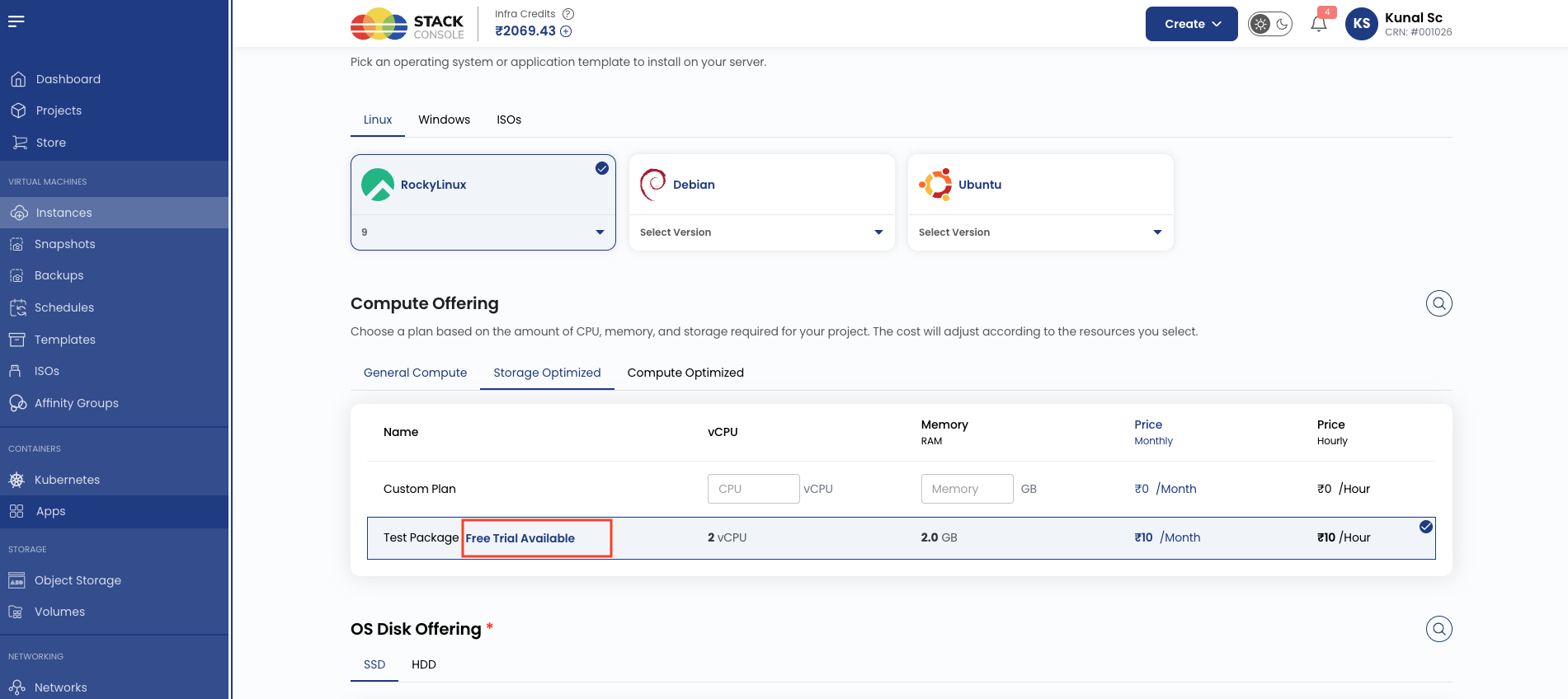
Tag
Optional. Assign a tag such as Free Trial for filtering or promotional labelling in the customer portal.
This are CMP level tags used for representation. It dose not have any relation with CloudStack host or storage tags.
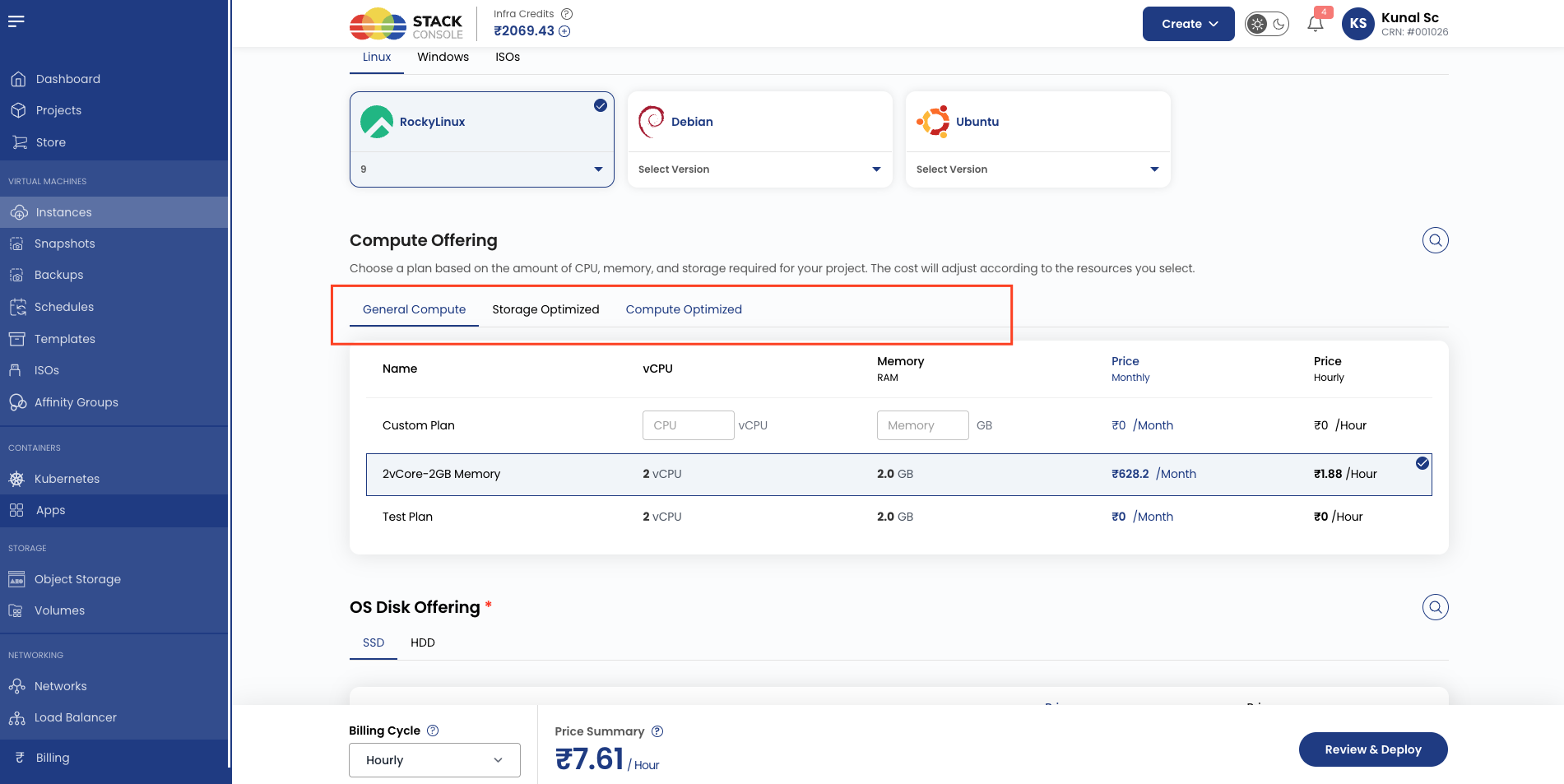
Choose Plan Category
Optional. Select a plan category (for example, General Compute) to group packages in the customer portal.
Packages without a plan category do not appear on the Create Instance page when plan categories are enabled.
When plan categories are enabled in CMP, the customer Create Instance page groups VM packages under the categories you assign here — for example, General Compute or High Memory.
Enable Free Trial
Optional When enabled, customers can provision VMs from this package under a free-trial policy without immediate billing for the trial period.
No. of Days for Free Trial
Required when Enable Free Trial is on. Number of calendar days the free trial runs — for example, 7 or 14.
Number of VMs per account
Required. Maximum number of VMs a single customer account can create from this package — for example, 1 for a one-time trial package or a higher limit for standard plans.
Billing cycle and pricing
Required. Set the price for each billing cycle and currency CMP supports.
CMP displays a pricing grid as per the currencies enabled at application level. Enter values for the cycles you offer.
Example (USD and INR rows):
| Currency | Hourly | Monthly | Quarterly | Yearly |
|---|---|---|---|---|
| USD | 1.87671233 | 628.2 | 1825 | 3533.8 |
| INR | 1.87671233 | 628.2 | 1825 | 3533.8 |
Define the monthly price first, then derive hourly using Monthly ÷ (30.5 × 24). See Pricing Formulas for all conversion formulas.
Custom package unit pricing must be equal to or higher than predefined packages for equivalent resources — see Unit Pricing.
End-to-end mapping example
Goal: Sell a 2 vCPU / 2 GB RAM plan in zone SC-SIM-ZONE-1.
CloudStack
- Create fixed compute offering
2vCore-2GB Memory— 2 cores, 2048 MB RAM, compute-only, public, zoneSC-SIM-ZONE-1
CMP
- Open Settings → Billing Setup → Rate Cards → Default → Packages → Virtual Machine
- Create package
2vCore-2GB Memory - Set Cloud Provider Setup
CloudStack-01, ZoneSC-SIM-ZONE-1 - Select Offering →
2vCore-2GB Memory - Set vCore CPU
2, Memory2048, Select OS FamilyAll - Assign Compute Category and Plan Category if enabled
- Enter pricing for USD and INR across billing cycles
- Set Status to Active and save
Customers selecting this package on Create Instance provision using the mapped CloudStack offering. Root disk size and storage charges are handled separately through volume packages when override disk is enabled.
Custom unconstrained offering (custom packages)
Predefined VM packages use fixed offerings. Custom packages (where customers enter their own CPU/RAM) require a separate custom unconstrained compute offering in CloudStack. Configure that offering once and map unit pricing in CMP — see Unit Pricing for setting prices and Storage Settings for configuring custom compute and disk offering IDs.
Validation checklist
Before marking a VM package Active, verify:
- CloudStack compute offering exists with matching CPU, RAM, zone, and public visibility
- Offering is compute-only and Enable Override Disk Offering is Yes in Cloud Provider Setup
- Select Offering maps to the correct CloudStack offering
- vCore CPU and Memory (In MB) match the offering
- Compute Category and Plan Category are set if those features are enabled
- Pricing is configured for each supported currency and billing cycle
- Templates and Volumes packages exist for the same zone