Manual
In manual payment mode, customers pay outside the CMP platform (bank transfer, cheque, cash, UPI). CMP generates invoices for usage, but admins verify offline payments and mark invoices paid — there is no payment gateway auto-charge.
Set payment mode: Clients → Register Client (Step 2 — new onboarding) or Clients → [Customer] → Billing Setup (existing account)
Admin onboarding
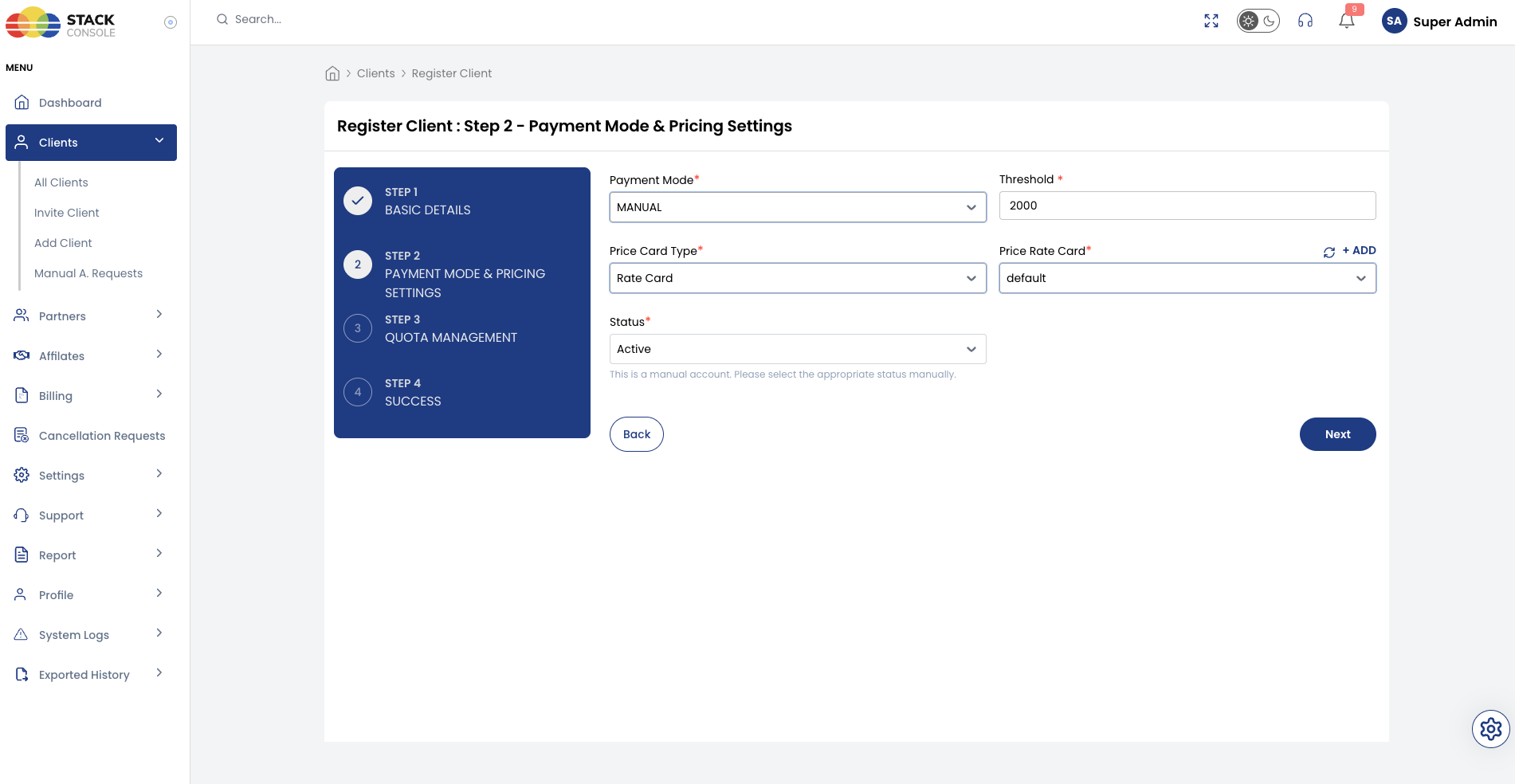
Admin selects MANUAL when onboarding a customer via Clients → Register Client.
| Step | Action |
|---|---|
| 1 | Basic Details — enter customer information |
| 2 | Payment Mode & Pricing Settings — select MANUAL, set Threshold, Price Rate Card, and Status |
| 3 | Quota Management — assign quotas |
| 4 | Success — account active immediately when status is Active |
See Admin registration flow and Step 2 — Manual (admin).
Self-registration
Manual mode on self-registration requires Manual to be enabled for Customer in Payment Mode Settings. By default, Manual is disabled for Customer — only admins assign it during Register Client.
| Step | Action |
|---|---|
| 1 | Verify Email Address |
| 2 | Complete Payment — select MANUAL (if visible); registration sent for admin approval |
Account stays pending until an admin approves or rejects the registration. Customer can create resources only after approval.
| Step | Who | Action |
|---|---|---|
| 1 | Customer | Uses services; invoice generated per billing cycle or threshold |
| 2 | Customer | Pays offline using bank details on invoice |
| 3 | Customer | Uploads proof via Manual Payment Submission |
| 4 | Admin | Verifies payment with finance / bank records |
| 5 | Admin | Marks invoice Paid in CMP (full or partial amount) |
Registration workflows
Manual mode supports admin onboarding and self-registration paths. Which modes customers can select is controlled in Settings → Billing Setup → Payment Mode Settings — see Payment Mode Settings. Do not change these settings after go-live without StackConsole support.
Threshold limit (spending cap)
During onboarding on Register Client Step 2 (or later in account settings), admin assigns a threshold to cap maximum usage.
When usage reaches the threshold:
- Invoice generated immediately — even if billing cycle has not ended
- Prevents abuse — detects high usage before normal invoice date
- Customer must pay (offline) before continuing at scale
Threshold applies to postpaid and manual accounts (see Postpaid — Threshold).
Billing and payment process
Resource usage tracked
        ↓
Invoice generated (cycle end OR threshold breach)
        ↓
Customer pays outside CMP (bank transfer, cheque, cash)
        ↓
Customer uploads proof → Manual Payment Submission
        ↓
Admin notified → verifies with bank records
        ↓
Admin approves/rejects proof
        ↓
Admin marks invoice(s) Paid in CMP
External payment by customer
- Payment made outside CMP — bank transfer, cheque, cash, UPI, etc.
- Customer uploads proof using Manual Payment Submission in the portal
- Display Bank Details on invoices — configure under branch invoice settings (Admin → Branches)
Admin verification
- Admin receives notification of proof submission
- Admin verifies against external records / bank statements
- Admin approves or rejects the payment proof
Manual invoice marking
Once payment is confirmed:
- Admin marks corresponding invoice(s) as Paid in CMP
- This step is not automated
- Supports partial payment — e.g. customer paid ₹4,000 against ₹5,000 due; admin marks paid up to ₹4,000
Admins must confirm receipt with the account/finance team and mark invoices paid manually. CMP does not detect offline bank transfers automatically.
Converting manual to postpaid
Manual → Postpaid is the only supported payment mode conversion in CMP — and it happens automatically when the customer saves a credit or debit card.
- Customer on a manual account adds and saves a card in the portal
- CMP automatically converts the account to postpaid
- Unpaid invoices are auto-charged to the saved card where applicable
- Future invoices follow standard postpaid auto-charge behaviour
Manual accounts cannot be converted to prepaid. Adding a card does not convert prepaid accounts to postpaid.
Invoice generation settings
CMP path: Admin → Invoices → Invoice Settings
| Flag | Purpose |
|---|---|
| MANUAL_ADVANCE_PRO_RATA_INVOICE | When true, pro-rata payable invoice generated immediately at service creation. When false, usage records maintained and converted to payable invoice on next renewal |
| MANUAL_ADVANCE_INVOICE | When true, renewal payable invoice on the 1st of the month (start of month). When false, usage records maintained and converted to payable invoice on next renewal |
Both flags default to false. Changing after go-live is not supported — decide at system setup with StackConsole. See Postpaid invoice generation modes for the equivalent postpaid flags.
| Global setting | Purpose |
|---|---|
delay_due_date_in_days | Delay due date (0 = immediate due date) |
Advance invoice example (monthly, created 10 Jan 2026)
| Invoice | When generated | Period |
|---|---|---|
| Pro-rata | Immediately at service creation (if MANUAL_ADVANCE_PRO_RATA_INVOICE enabled) | 10 Jan – 31 Jan 2026 |
| Renewal | 1 Feb 2026 — start of month (if MANUAL_ADVANCE_INVOICE enabled) | 1 Feb – 28 Feb 2026 |
When advance flags are disabled, usage records are maintained during the cycle and converted to a payable invoice on the next renewal, or on threshold breach.
Admin-created unpaid invoices on postpaid accounts
If an admin creates a manual unpaid invoice on a postpaid account:
- Card is not auto-charged immediately
- Admin must mark paid, or customer pays via portal
Contract billing
Service contracts work with quarterly and longer billing cycles, DATE_TO_DATE billing rule only, and manual or postpaid payment mode — not prepaid.
Vendor customer accounts
Vendor-managed end-customer accounts are always set to Manual payment mode:
- Prevents payment-system restrictions (threshold still applies)
- Usage tracked internally — no taxable invoice to end customer
- Vendor billed in aggregate for all customer usage
Related
- Payment Modes
- Postpaid — threshold and cycle-end invoicing parallels
- Billing Cycles
- Billing Rules
- Billing FAQs