Payment Modes
A payment mode (also called billing mode in CMP) defines how customers pay for services. CMP supports three payment modes:
| Mode | Summary |
|---|---|
| Prepaid | Wallet top-up; usage deducted in real time |
| Postpaid | Invoice at period end; card can auto-charge |
| Manual | Offline payment; admin verifies and marks invoices paid |
Payment mode is separate from billing cycles (hourly, monthly, yearly) and billing rules (how charges are calculated).
Set per customer: Clients → Register Client (new onboarding) or Clients → [Customer] → Billing Setup (existing account)
| Goal | Payment mode |
|---|---|
| Wallet top-up, real-time deduction | Prepaid |
| Saved card, auto-charge at invoice time | Postpaid |
| Bank transfer / offline payment | Manual |
| Contract services (DATE_TO_DATE rule) | Postpaid or Manual — not prepaid |
| Assign payment mode (admin) | Clients → Register Client — see Admin registration flow |
| Assign payment mode (self-registration) | Public signup — see Registration flow |
| Configure platform payment modes | Settings → Billing Setup → Payment Mode Settings — StackConsole team only; configure before go-live |
| Change payment mode after onboarding | Only Manual → Postpaid is supported — see Changing payment mode |
Pages in this section
- Prepaid — wallet, two billing models (infra credit vs service usage), low-balance handling, upgrades
- Postpaid — threshold, auto-charge, frozen invoices, consolidated billing
- Manual — registration workflows, offline payment, admin verification
The three payment modes
| Mode | How customer pays | Card auto-charge? |
|---|---|---|
| Prepaid | Wallet top-up | No |
| Postpaid | Invoice settlement | Yes — when card on file and gateway supports variable recurring charges |
| Manual | Outside CMP (bank, cheque, cash, UPI) | No — admin marks paid |
Prepaid:  Top up wallet  →  Provision  →  Wallet deducted  →  Month-end invoice (record)
Postpaid: Provision  →  Usage tracked  →  Invoice  →  Card auto-charge or portal pay
Manual:   Provision  →  Usage tracked  →  Invoice  →  Offline pay  →  Admin marks paid
Assigning payment mode
Payment mode is set when the account is created — either by an admin during onboarding or by the customer during self-registration. Choose carefully: payment mode is effectively fixed after onboarding and cannot be changed except Manual → Postpaid.
| Path | Who selects payment mode | CMP entry point |
|---|---|---|
| Admin onboarding | Admin selects mode and rate card | Clients → Register Client — see Admin registration flow |
| Self-registration | Customer selects mode (if multiple enabled) | Public signup form — see Registration flow |
Admin onboarding — Register Client
When an admin onboards a new customer, payment mode is selected in the Register Client wizard. This is a one-time decision — prepaid and postpaid accounts cannot be converted later.
CMP path: Clients → Register Client
Admin registration flow
| Step | Name |
|---|---|
| 1 | Basic Details — customer account information |
| 2 | Payment Mode & Pricing Settings — payment mode, rate card, and mode-specific fields |
| 3 | Quota Management — assign account quotas |
| 4 | Success — onboarding complete |
On Step 2 — Payment Mode & Pricing Settings, the admin selects the payment mode and Price Rate Card. Mode-specific fields (threshold, status, payment method) appear based on the selection.

Payment mode conversion is not supported for prepaid ↔ postpaid or prepaid/manual ↔ postpaid/manual changes. Only Manual → Postpaid can be done later. Choose the correct mode before the customer provisions services.
Step 2 — Payment Mode & Pricing Settings
Shared fields on Step 2 for all modes:
| Field | Required | Description |
|---|---|---|
| Payment Mode | Yes | PREPAID, POSTPAID, or MANUAL |
| Price Card Type | Yes | Select Rate Card |
| Price Rate Card | Yes | Rate card for this customer (for example, default). Use + Add for additional rate cards |
Mode-specific fields and screenshots:
Step 2 — Manual (admin)
| Field | Required | Description |
|---|---|---|
| Threshold | Yes | Spending cap (for example, 2000) — see Manual — Threshold |
| Status | Yes | For example, Active. CMP shows: "This is a manual account. Please select the appropriate status manually." |
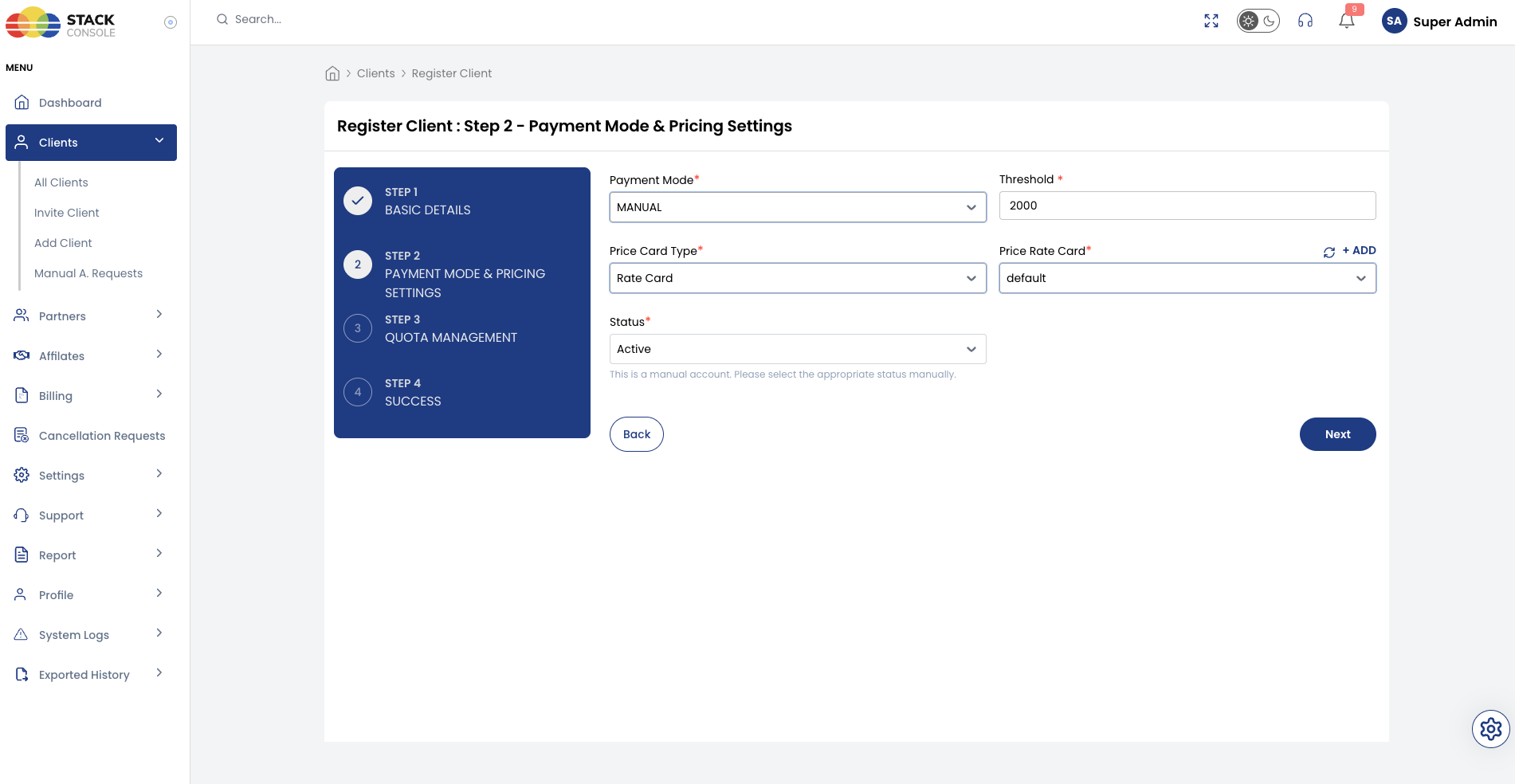
Account is typically activated immediately when status is Active — no card or wallet payment required.
Step 2 — Postpaid (admin)
| Field | Required | Description |
|---|---|---|
| Payment Method | Yes | Credit Card. CMP shows: "This account will be activated once the credit card is attached." |
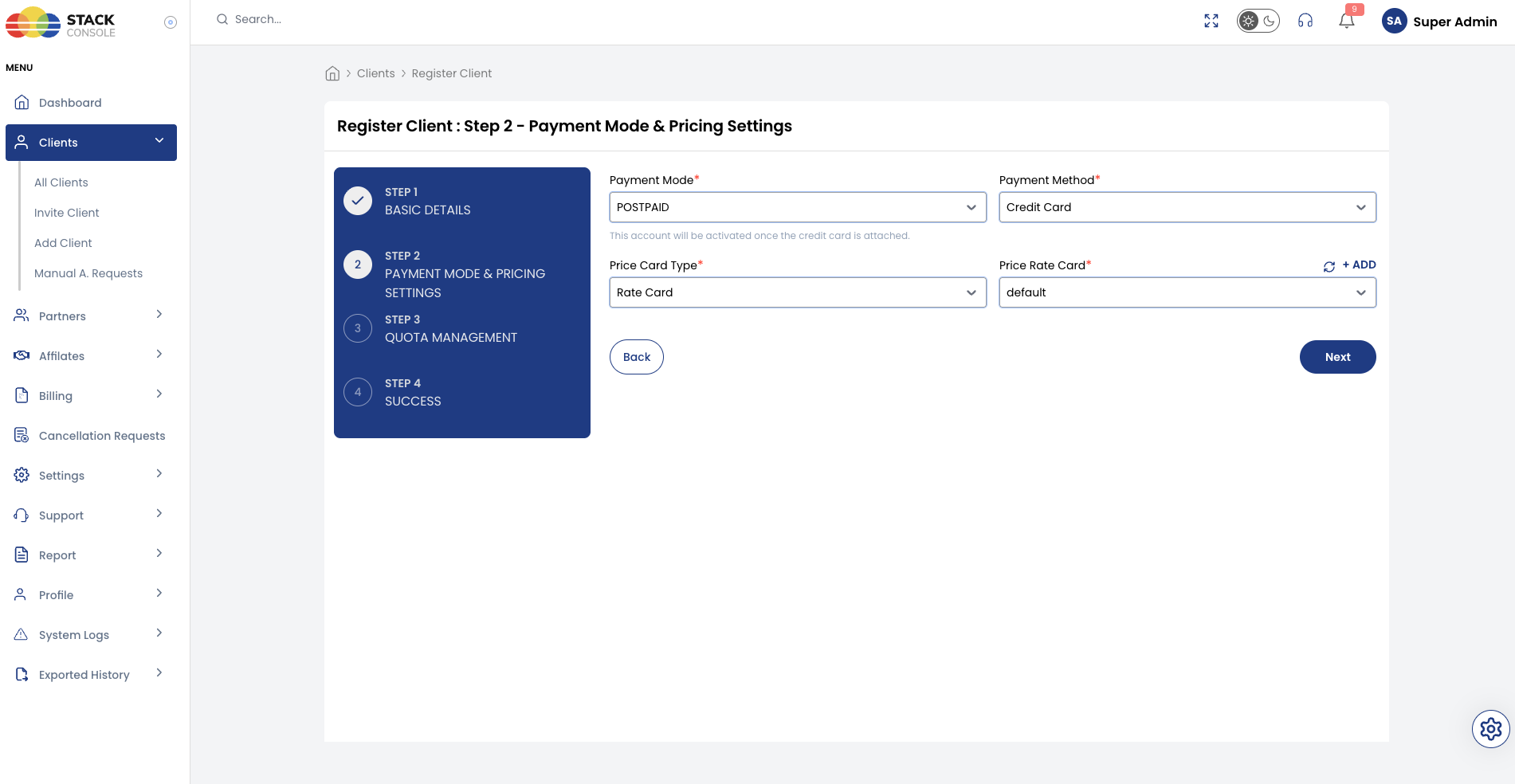
Account stays pending until the customer attaches a credit card.
Step 2 — Prepaid (admin)
CMP shows: "This account will be activated once the payment is completed."
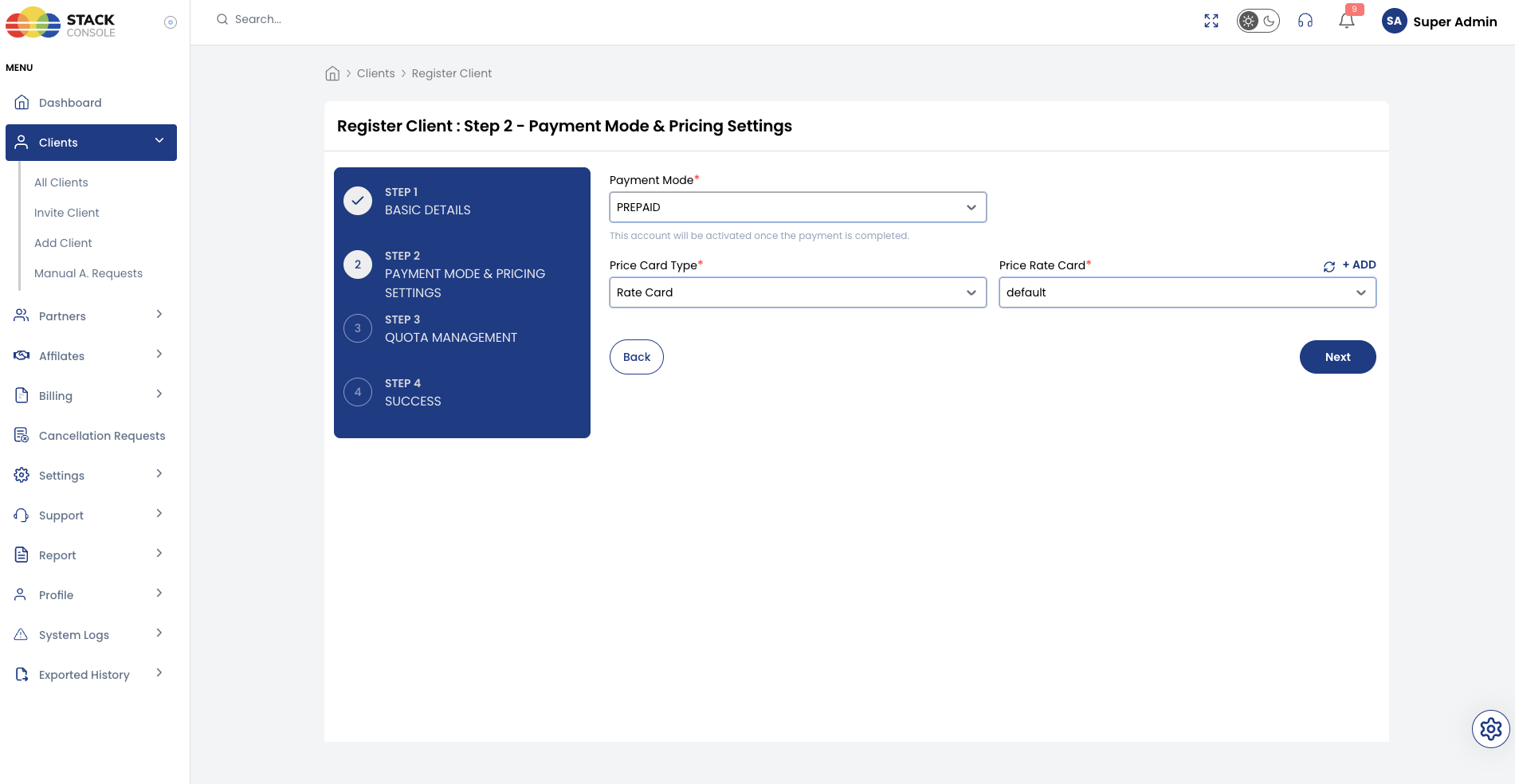
Account stays pending until the customer completes the initial wallet top-up. No Threshold or Status on Step 2.
Behaviour by mode (admin onboarding)
| Mode | Admin sets on Step 2 | Account activation |
|---|---|---|
| Manual | Threshold, Price Rate Card, Status | Immediate when status is Active |
| Postpaid | Payment Method (Credit Card), Price Rate Card | Pending until customer attaches card |
| Prepaid | Price Rate Card only | Pending until customer completes initial payment |
Admin selects the Price Rate Card during onboarding — self-registered customers get the default rate card automatically. See How customers get a rate card.
Self-registration
When self-registration is enabled, end customers complete a multi-step signup flow. Payment mode is selected on Step 2 — Complete Payment — but only if more than one mode is enabled for Customer in Payment Mode Settings.
| Visible modes on signup | Customer experience |
|---|---|
| One mode only | That mode is assigned automatically — no choice on the form |
| Multiple modes | Customer selects PREPAID or POSTPAID (or MANUAL if enabled for Customer) |
Registration flow
| Step | Name |
|---|---|
| 1 | Verify Email Address |
| 2 | Complete Payment — billing details, payment mode selection, and initial payment |
On Step 2 — Complete Payment, the customer provides billing details, selects a payment mode, and completes the required payment action before the account is activated.
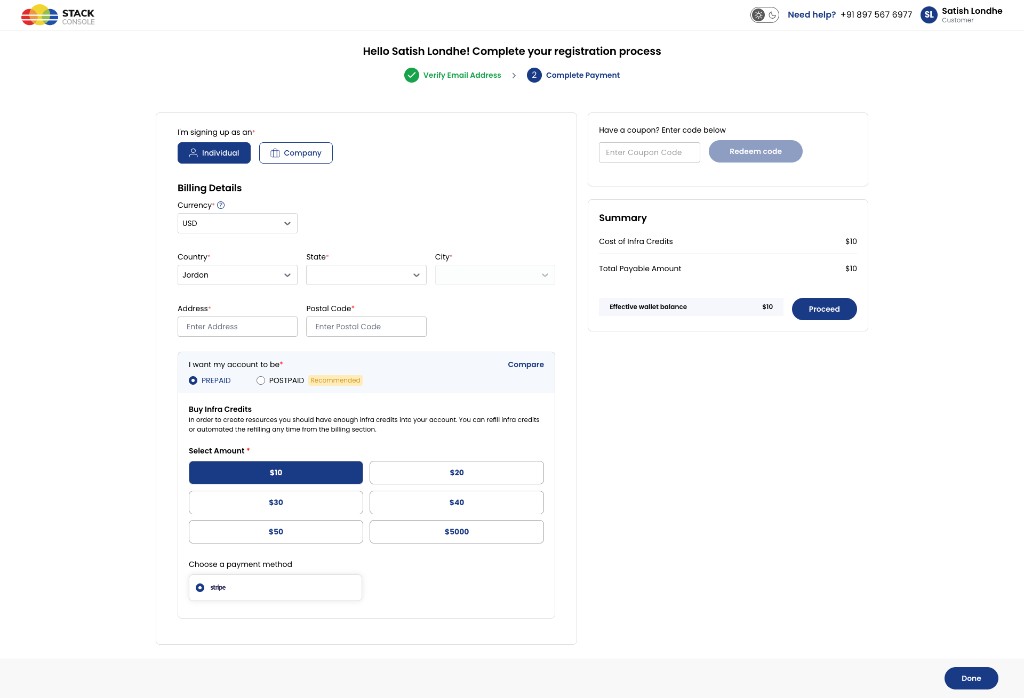
Step 2 — Complete Payment fields
| Section / field | Description |
|---|---|
| I'm signing up as an | Individual or Company |
| Billing Details | Currency, Country, State, City, Address, Postal Code |
| I want my account to be* | Payment mode selection — radio buttons for each mode enabled for Customer (for example, PREPAID, POSTPAID). Modes marked Recommended in Payment Mode Settings show a badge. Use Compare to view mode differences |
| Buy Infra Credits | Shown when PREPAID is selected — customer must purchase initial wallet credits to activate the account |
| Select Amount* | Predefined top-up amounts configured in Settings → Billing Setup → Currencies → Configure (for example, $10, $20, $30) |
| Choose a payment method | Active payment gateway for the selected currency (for example, Stripe) |
| Coupon | Optional coupon code entry |
| Summary | Cost of Infra Credits, Total Payable Amount, Effective wallet balance |
| Proceed | Completes payment and activates the account |
Modes disabled for Customer in Payment Mode Settings do not appear on the self-registration form. For example, if MANUAL has Disable for → Customer checked, customers only see PREPAID and POSTPAID — manual mode is available only when an admin assigns it during admin onboarding.
Behaviour by mode (self-registration)
| Mode | Self-registration behaviour |
|---|---|
| Prepaid | Customer selects a top-up amount and pays via the configured gateway. Account activates after payment — wallet balance shown as Effective wallet balance |
| Postpaid | Customer adds and validates a saved card (requires a gateway with Has Save Card and auto-charge support). Account activates after card attachment |
| Manual | Registration is sent for admin approval — account stays pending until approved. Only shown if Manual is not disabled for Customer |
Self-registered customers are automatically assigned the default rate card — there is no rate card selection on the signup form. See How customers get a rate card.
Payment Mode Settings (platform-wide)
CMP path: Settings → Billing Setup → Payment Mode Settings
This screen controls which payment modes are available platform-wide — including which account types can select each mode during admin onboarding and self-registration.
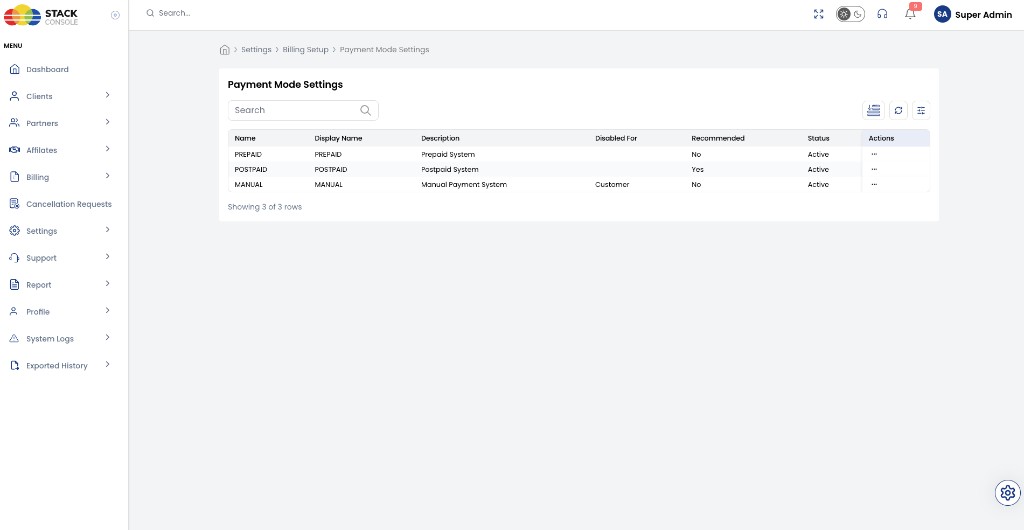
The listing shows each payment mode with its current configuration. Click Actions → Update Mode on any row to edit.
Update Mode
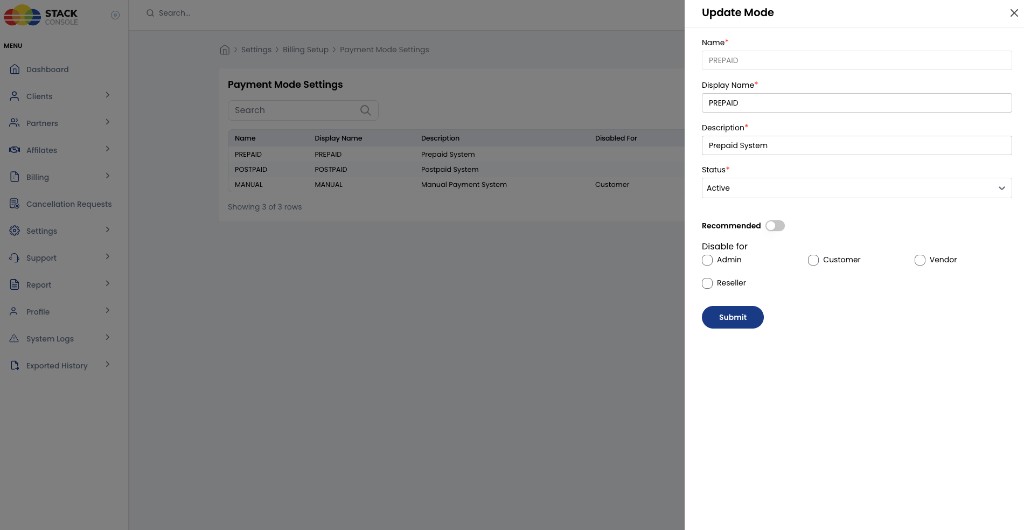
| Field | Required | Description |
|---|---|---|
| Name | Yes | Internal mode identifier — PREPAID, POSTPAID, or MANUAL. Shown in the list Name column and on the edit form |
| Display Name | Yes | Label shown in the CMP UI — list column and edit form |
| Description | Yes | Short description (for example, Prepaid System, Postpaid System, Manual Payment System) — list column and edit form |
| Disabled For / Disable for | No | List column: account types that cannot select this mode. Edit form: checkboxes for Admin, Customer, Vendor, Reseller — checked types are hidden from onboarding and registration. For example, MANUAL disabled for Customer means only admins can assign manual mode |
| Recommended | No | List column: Yes/No. Edit form: toggle — when enabled, CMP highlights this mode as the recommended option where a choice is offered |
| Status | Yes | Active or inactive — inactive modes are not available for new assignments. List column and edit dropdown |
| Actions | — | List only — open menu → Update Mode to open the edit panel |
Payment Mode Settings is a platform-level configuration. Changes are reserved for the StackConsole team, or should be made only with StackConsole support.
Do not change these settings after go-live or while customers are actively using the platform. Mid-stream changes can break billing workflows, cause provisioning errors, and leave existing accounts in inconsistent states.
Plan your payment mode strategy before launch — which modes are available to customers, resellers, and vendors — and treat this configuration as fixed once production onboarding begins.
- If a mode is disabled for Customer, it does not appear on the self-registration form for end customers.
- If multiple modes are enabled for Customer, the signup form shows a choice; if only one is enabled, that mode is assigned automatically.
- Recommended affects which mode is pre-selected or highlighted when a choice is shown.
Related billing setup
Configure payment gateways, currencies, and top-up amounts alongside Payment Mode Settings — but before go-live:
| Area | CMP path | What to configure |
|---|---|---|
| Payment gateways | Settings → Billing Setup → Payment Setting | Credentials + branch assignment; Disable on Registration; Has Save Card; Is Default for Postpaid — see Payment Gateways |
| Currency gateways | Settings → Billing Setup → Currencies → Configure (Step 2) | Mandatory — assign payment gateways to each currency — see Assign gateway to currency |
| Payment providers | Settings → Billing Setup → Payment Provider | Per-gateway Has Autocharge, logos — see each gateway page (for example, Stripe) |
| Currency & top-up | Settings → Billing Setup → Currencies → Configure | Add Top-Up Amount — predefined wallet amounts for prepaid registration |
CMP does not convert prepaid accounts when a customer adds a card. Manual accounts do auto-convert to postpaid when a card is saved — see Changing payment mode.
Changing payment mode
Payment mode conversion is limited. Most modes cannot be changed after onboarding.
| Conversion | Supported? | How |
|---|---|---|
| Prepaid → Postpaid | ❌ Not supported | — |
| Prepaid → Manual | ❌ Not supported | — |
| Postpaid → Prepaid | ❌ Not supported | — |
| Postpaid → Manual | ❌ Not supported | — |
| Manual → Postpaid | ✅ Only supported conversion | Automatic when the customer saves a credit or debit card |
Manual → Postpaid (automatic on card save)
When a manual customer adds and saves a credit or debit card, CMP automatically converts the account to postpaid. No separate admin action is required.
After conversion:
- The account payment mode changes from Manual to Postpaid
- Unpaid invoices can be auto-charged to the saved card
- Future invoices follow standard postpaid auto-charge behaviour
Adding a card does not convert prepaid or postpaid accounts to another payment mode. Only manual accounts auto-convert to postpaid when a card is saved.
Manual accounts cannot be converted to prepaid.
Choosing a payment mode
| Scenario | Recommended mode |
|---|---|
| Self-service wallet top-up | Prepaid |
| Self-service with saved card | Postpaid |
| Enterprise bank transfer / purchase order | Manual |
Hourly invoices (all modes)
For hourly services, invoices are generated at the end of the month or on the 1st of the following month — regardless of payment mode. All hourly usage in the month is consolidated into a single invoice.
See Billing Cycles for fixed-cycle and mandatory-hourly service rules.
Shared invoicing topics
| Topic | Summary |
|---|---|
| VM upgrade billing | Prepaid: separate payable invoice per upgrade. Postpaid: line items on period-end invoice |
| Early deletion (fixed cycle) | No refund — full period still charged; admin may grant free credits |
| Admin-created manual invoices | Do not auto-charge postpaid cards |
| Free credits & discounts | Discounts at service creation only; free credits settle existing invoices |
| Partial payment | Admin marks invoices paid — especially in manual mode |
| One consolidated invoice | Postpaid monthly consolidation; DATE_TO_DATE rule uses per-service invoices |