Payment Gateways
A payment gateway is the provider CMP uses to collect payments — wallet top-ups (prepaid), invoice settlement, and (where supported) saved card / auto-charge for postpaid.
Payment gateways are separate from payment modes (prepaid, postpaid, manual). Manual mode does not use gateway auto-charge — customers pay offline.
CMP paths:
| Area | Path |
|---|---|
| Payment Gateway Settings | Settings → Billing Setup → Payment Setting — credentials, branch assignment, provider-specific options |
| Currency → Payment Gateway | Settings → Billing Setup → Currencies → Configure (Step 2) — mandatory assignment of gateways to each currency |
| Payment Provider | Settings → Billing Setup → Payment Provider — capability flags per gateway (document on each gateway page) |
| Goal | Where |
|---|---|
| Configure a gateway and assign branches | Payment Gateway Settings |
| Make the gateway available for a currency | Currency configuration |
| Postpaid auto-charge | Gateway must natively support variable recurring card charges and Has Autocharge must be enabled in CMP (for example, Stripe) |
| Sandbox credentials at install | Prerequisites — Payment Gateways |
Configuring credentials alone is not enough. A payment gateway is shown to customers only when both are true:
- The gateway is assigned to the customer’s branch in Payment Gateway Settings
- The gateway is assigned to the currency under Currencies → Configure (Step 2)
If either assignment is missing, the gateway stays hidden on registration, top-up, and payment screens.
How payment gateway visibility works
Payment Gateway Settings (credentials + branch)
        +
Currencies → Configure Step 2 (gateway linked to currency)
        ↓
Gateway appears for that branch + currency
| Control | CMP path | Effect |
|---|---|---|
| Branch | Settings → Billing Setup → Payment Setting | When you have more than one branch, assign each gateway to the branches where it should be available |
| Currency | Settings → Billing Setup → Currencies → Configure → Step 2 | Mandatory — select which gateways customers can use for that currency |
Today, after you configure a payment gateway, you must also open Currencies → Configure and add the gateway for each currency. StackConsole plans to improve this into a single payment-gateway workflow later. Until then, complete both steps before testing payments.
1. Payment Gateway Settings (branch visibility)
Path: Settings → Billing Setup → Payment Setting (breadcrumb: Payment Gateway Settings)
Use this screen to create or edit each gateway: provider credentials, branch assignment, and provider-specific options.
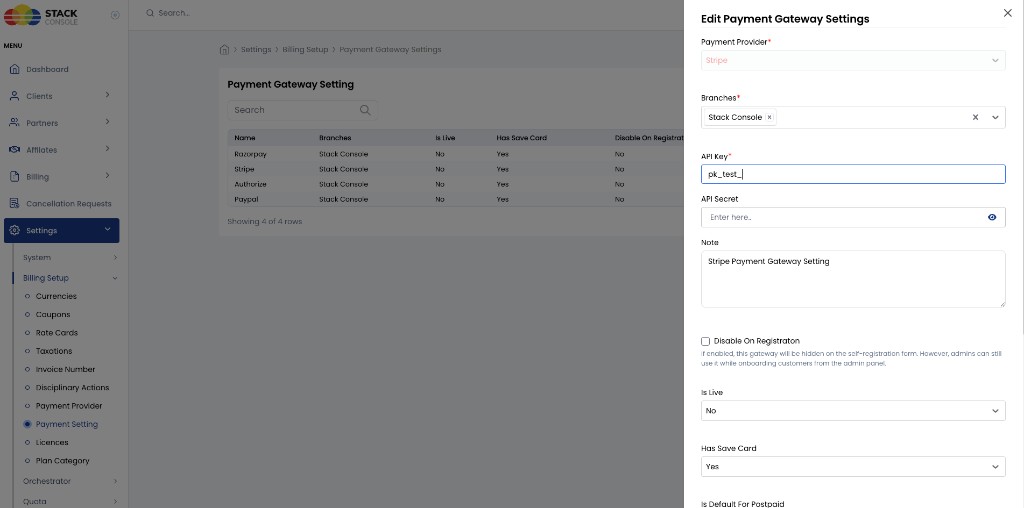
The listing shows configured gateways with columns such as Name, Branches, Is Live, Has Save Card, and Disable On Registration.
Branch assignment
When editing a gateway, assign it under Branches to one or more branches (for example, Stack Console). Visibility is limited to customers under those branches.
A payment gateway is visible only when it is assigned to a branch. If Branches is empty or the customer’s branch is not selected, the gateway will not appear on self-registration, admin onboarding payment steps, or wallet top-up — even if credentials and currency assignment are correct.
When you have more than one branch, review branch assignment for every gateway you expect customers to use.
Provider-specific settings
Each payment gateway has its own:
- Payment Gateway Settings form fields (API keys, merchant IDs, flags)
- Payment Provider / Edit Payment Gateway Providers form fields (for example Has Autocharge, logos)
Document those on the gateway’s own page — for example Stripe, Razorpay, or PayPal.
See also Payment Modes — related billing setup.
2. Assign gateway to currency (mandatory)
Path: Settings → Billing Setup → Currencies → Configure → Step 2 – Configure Payment Gateway for Currency
After a payment gateway exists under Payment Gateway Settings, you must attach it to each currency where customers should pay with it.
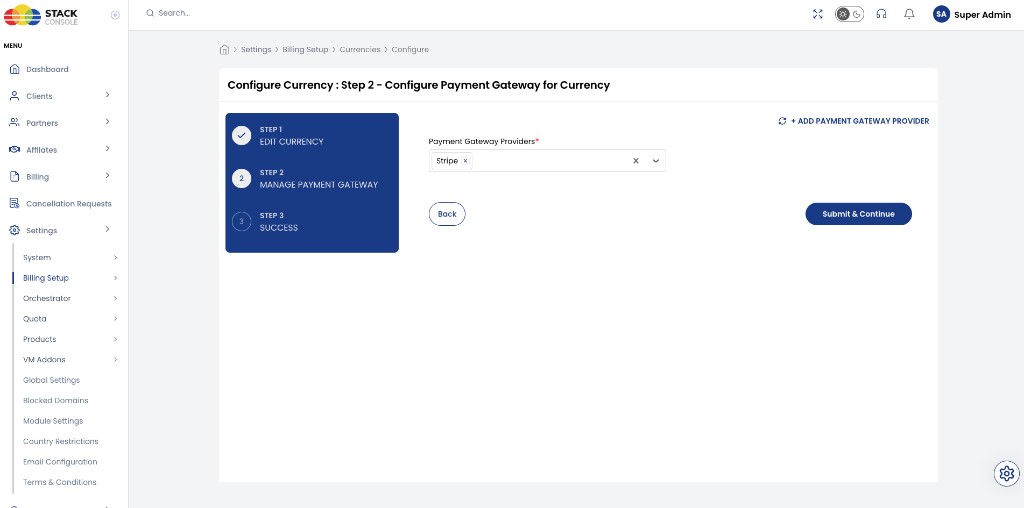
Wizard steps:
| Step | Name |
|---|---|
| 1 | Edit Currency |
| 2 | Manage Payment Gateway (current — assign providers) |
| 3 | Success |
Payment Gateway Providers
Required. Multi-select the gateways allowed for this currency (for example, Stripe). Use + Add Payment Gateway Provider if you need to add another provider definition first.
Then click Submit & Continue.
Even after the gateway is configured and assigned to a branch, it will not be offered for payments in a currency until you add it on Currencies → Configure → Step 2.
Complete this for every currency that should accept online payments.
Payment modes and gateways
| Payment mode | How the gateway is used |
|---|---|
| Prepaid | Customer tops up wallet through an active gateway for their branch + currency |
| Postpaid | Saved card / auto-charge — gateway must natively support variable recurring card charges, and Has Autocharge must be enabled in CMP for that provider |
| Manual | No gateway auto-charge; offline payment. Saving a card can auto-convert Manual → Postpaid |
Postpaid auto-charge requires both:
- Native gateway support — the provider can charge saved cards for recurring payments with variable amounts
- CMP setting — Has Autocharge enabled for that provider under Settings → Billing Setup → Payment Provider
Setting Has Autocharge alone is not sufficient. Payment Provider form fields are documented on each gateway page (for example, Stripe — Payment Gateway Providers). See Postpaid.
Supported gateways
| Gateway | Hub page | Typical regions / notes |
|---|---|---|
| Stripe | Cards, wallets; postpaid auto-charge common | Global |
| AsiaPay | Cards and local methods (region-dependent) | Asia |
| HyperPay | Cards / MENA payment rails | Middle East / North Africa |
| Authorize.net | Cards | North America (and others) |
| M-Pesa | Mobile money | East Africa |
| PayPal | PayPal checkout / accounts | Global |
| Razorpay | Cards, UPI, netbanking, wallets | India |
| Mollie | Cards and European methods | Europe |
| Dinger | Local payment methods | Myanmar / SEA |
| Cardlink | Cards | Greece / EU |
| Paytm | Wallet, UPI, cards | India |
| Payduniya | Local payment methods | India / region-specific |
Some gateways expose many payment methods at the provider — CMP may integrate only a subset. Confirm supported methods and autocharge behaviour with StackConsole before go-live.
Before go-live checklist
- Sandbox credentials provided for each gateway — Prerequisites
- Gateway configured under Payment Setting with provider-specific credentials (see each gateway page)
- Gateway assigned to the correct branch(es)
- Gateway added for each currency under Currencies → Configure → Step 2
- Postpaid default gateway used only if the gateway natively supports autocharge and Has Autocharge is enabled in CMP
- Test prepaid top-up and (if used) postpaid auto-charge in sandbox