Disciplinary Actions
Disciplinary actions are automated (and optionally manual) measures against accounts with overdue invoices or negative prepaid wallet balances. They protect revenue and drive payment while keeping admin control for exceptions.
| Action | Purpose | Detail |
|---|---|---|
| Freeze | Temporarily restrict activity | Existing services stay usable; no new paid services or modifications |
| Suspend | Disable access until dues are cleared | Portal limited to billing/payment; stoppable resources stopped |
| Terminate | Permanently close portal access | CMP access blocked; admin must clean up services manually |
Together these are called disciplinary actions.
Suspension stops VMs/Kubernetes. Whether compute charges pause while stopped depends on enable_stoppable_service_billing.
When are disciplinary actions triggered?
Timing depends on payment mode and configured days (global defaults per account type, plus optional per-account overrides).
| Mode | Clock starts (Day 0) when | What happens next |
|---|---|---|
| Prepaid | Wallet goes negative / low balance | Each action’s own day count is measured from this Day 0 |
| Postpaid | Invoice due date passes (overdue) | Same — Freeze / Suspend / Terminate each count from this Day 0 |
FREEZE = 3, SUSPEND = 7, and TERMINATE = 14 (typical defaults) all start from the same trigger day — they are not “3 days after freeze, then 7 more after suspend”.
With those defaults, if Day 0 is the 15th: freeze on the 18th, suspend on the 22nd, terminate on the 29th.
Reminders are configured per action (see Reminder emails and timing). Admins can add multiple reminders on one FREEZE, SUSPEND, or TERMINATE row. Staff addresses in Additional Staff Emails are also notified when configured.
Reminder emails and timing
Each disciplinary row (FREEZE, SUSPEND, or TERMINATE) has:
- Action day — The no. days after the … action to be applied (typical defaults: FREEZE = 3, SUSPEND = 7, TERMINATE = 14)
- Reminder Actions — emails scheduled with Send before no. of Days
Day 0 is always the invoice due date (postpaid) or low / negative wallet (prepaid). Freeze, suspend, and terminate each count from that same Day 0.
reminder send day (from Day 0) = action days − “Send before no. of Days”
Send before is not “Day 0 / Day 1 / Day 2 from due date”.
It means: “how many days before the action should this email go out?”
- 0 = send on the same day the action runs
- 1 = send 1 day before the action
- 2 = send 2 days before the action
- and so on
Dropdown options (action days 3 / 7 / 14)
When The no. days after … is set to the usual defaults, Send before no. of Days offers:
| Action days | Action that day | Send before options |
|---|---|---|
| 3 (FREEZE) | Day 3 | 0, 1, 2 |
| 7 (SUSPEND) | Day 7 | 0, 1, 2, 3 |
| 14 (TERMINATE) | Day 14 | 0, 1, 2, 3, 4, 5, 6 |
Add every option you need with + Add (one reminder row per value).
FREEZE = 3 — every Send before value → which day?
Action runs on Day 3. Dropdown: 0, 1, 2.
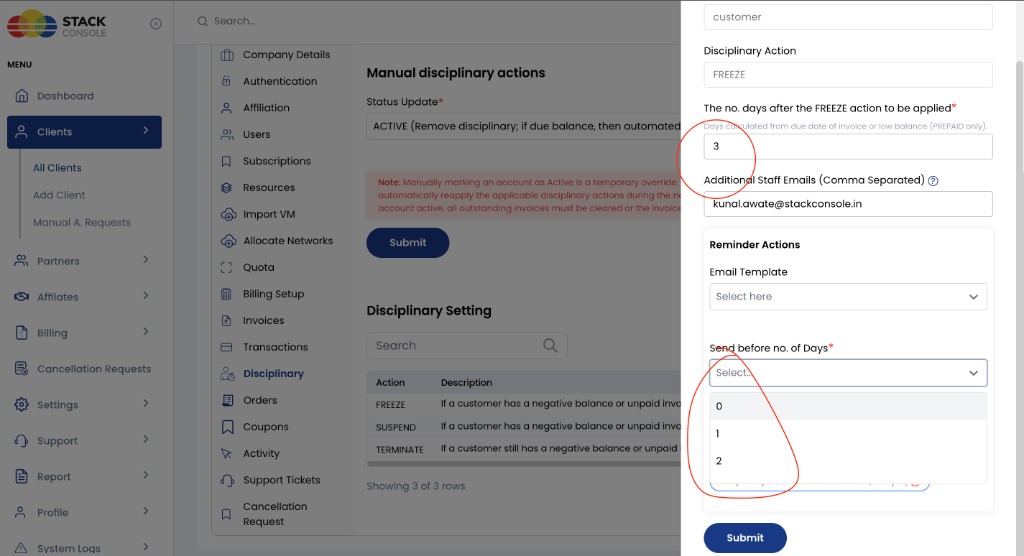
| Send before | Meaning | Reminder on (from Day 0) | If Day 0 = 15 Jan |
|---|---|---|---|
| 0 | Same day as FREEZE | Day 3 | 18 Jan (freeze day) |
| 1 | 1 day before FREEZE | Day 2 | 17 Jan |
| 2 | 2 days before FREEZE | Day 1 | 16 Jan |
If all freeze reminders are set (0, 1, and 2):
15 Jan  Day 0 — due / low balance (no freeze reminder for values 0–2)
16 Jan  Day 1 — reminder (Send before = 2)
17 Jan  Day 2 — reminder (Send before = 1)
18 Jan  Day 3 — reminder (Send before = 0) + FREEZE
SUSPEND = 7 — every Send before value → which day?
Action runs on Day 7. Dropdown: 0, 1, 2, 3.
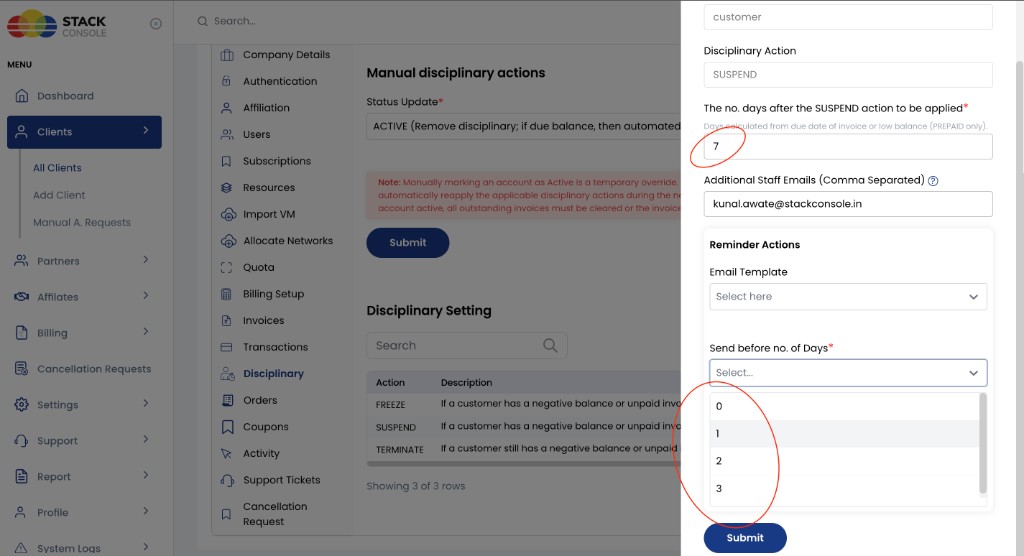
| Send before | Meaning | Reminder on (from Day 0) | If Day 0 = 15 Jan |
|---|---|---|---|
| 0 | Same day as SUSPEND | Day 7 | 22 Jan (suspend day) |
| 1 | 1 day before SUSPEND | Day 6 | 21 Jan |
| 2 | 2 days before SUSPEND | Day 5 | 20 Jan |
| 3 | 3 days before SUSPEND | Day 4 | 19 Jan |
If all suspend reminders are set (0–3):
15–18 Jan  Days 0–3 — no suspend reminder yet (values 0–3 start at Day 4)
19 Jan  Day 4 — reminder (Send before = 3)
20 Jan  Day 5 — reminder (Send before = 2)
21 Jan  Day 6 — reminder (Send before = 1)
22 Jan  Day 7 — reminder (Send before = 0) + SUSPEND
TERMINATE = 14 — every Send before value → which day?
Action runs on Day 14. Dropdown: 0, 1, 2, 3, 4, 5, 6.
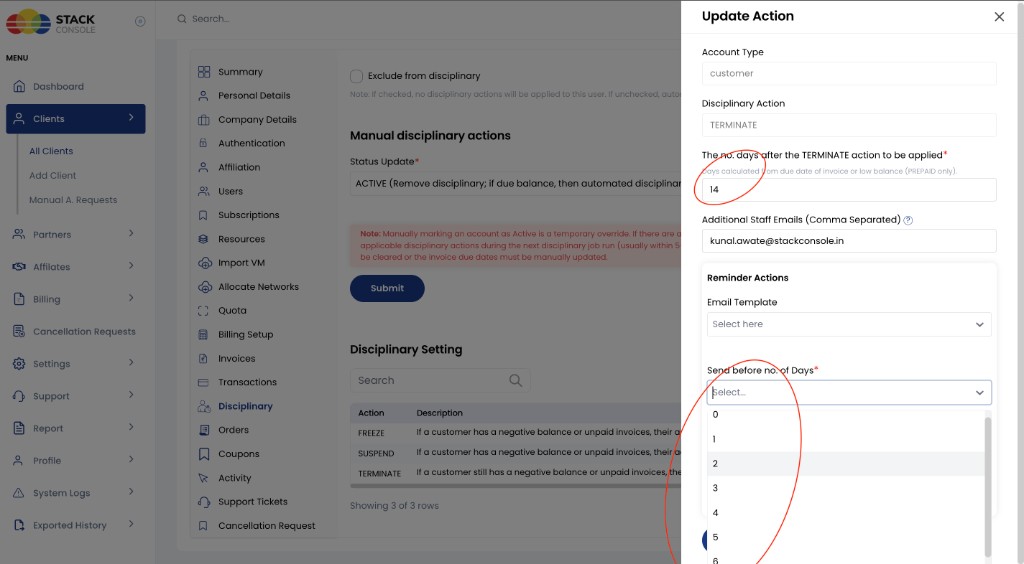
| Send before | Meaning | Reminder on (from Day 0) | If Day 0 = 15 Jan |
|---|---|---|---|
| 0 | Same day as TERMINATE | Day 14 | 29 Jan (terminate day) |
| 1 | 1 day before TERMINATE | Day 13 | 28 Jan |
| 2 | 2 days before TERMINATE | Day 12 | 27 Jan |
| 3 | 3 days before TERMINATE | Day 11 | 26 Jan |
| 4 | 4 days before TERMINATE | Day 10 | 25 Jan |
| 5 | 5 days before TERMINATE | Day 9 | 24 Jan |
| 6 | 6 days before TERMINATE | Day 8 | 23 Jan |
If all terminate reminders are set (0–6):
15–22 Jan  Days 0–7 — no terminate reminder yet (values 0–6 start at Day 8)
23 Jan  Day 8  — reminder (Send before = 6)
24 Jan  Day 9  — reminder (Send before = 5)
25 Jan  Day 10 — reminder (Send before = 4)
26 Jan  Day 11 — reminder (Send before = 3)
27 Jan  Day 12 — reminder (Send before = 2)
28 Jan  Day 13 — reminder (Send before = 1)
29 Jan  Day 14 — reminder (Send before = 0) + TERMINATE
New accounts often get a single reminder with Send before = 1 (one day before each action). That is enough for most setups; add 0, 2, 3, … only when you want extra reminder days. See the practical timeline.
Email content and placeholders
Path: Admin → Email Templates → Disciplinary Action Reminder Email
- One template is reused for all reminder scenarios — keep wording generic across freeze / suspend / terminate
@{{no_days_remaining}}is filled with the reminder’s Send before value (days until that action from the email send date)- Use only placeholders listed on the template edit form
Practical timeline example (defaults)
Use this end-to-end picture with common global defaults for a customer account:
| Setting | Value |
|---|---|
| FREEZE days | 3 |
| SUSPEND days | 7 |
| TERMINATE days | 14 |
| Reminder before each action | 1 day (Disciplinary Action Reminder Email) |
| Additional staff emails | Optional (for example support@provider.com) |
Postpaid — unpaid invoice
Setup: Invoice due date = 15 January. Customer does not pay. Due balance remains on the account.
| Calendar date | Day from due | What is triggered | Customer / admin impact |
|---|---|---|---|
| 15 Jan | Day 0 | Invoice becomes overdue; disciplinary clocks start | Due balance unpaid; account still ACTIVE |
| 17 Jan | Day 2 | Freeze reminder email (1 day before freeze) | Customer + staff emails (if set) warned that freeze is next |
| 18 Jan | Day 3 | FREEZE applied | No new paid services / no service changes; existing VMs keep running; invoices still generate |
| 21 Jan | Day 6 | Suspend reminder email | Warned that suspension is next |
| 22 Jan | Day 7 | SUSPEND applied | Portal mostly billing-only; VMs/K8s stopped; storage/IP still billed (see stoppable services); invoices continue |
| 28 Jan | Day 13 | Terminate reminder email | Final warning |
| 29 Jan | Day 14 | TERMINATE applied | CMP portal blocked; admin must clean up resources manually; no new invoices |
15 Jan (Day 0)  Overdue / due balance
    │
17 Jan ── Reminder: freeze tomorrow
18 Jan ── FREEZE
    │
21 Jan ── Reminder: suspend tomorrow
22 Jan ── SUSPEND (VMs stopped)
    │
28 Jan ── Reminder: terminate tomorrow
29 Jan ── TERMINATE (portal blocked)
If the customer pays the due balance (or admin clears dues / extends due date) before a stage fires, later actions for that overdue cycle should not proceed. If they pay after freeze but before suspend, restore access per your process (manual ACTIVE / revoke) and clear dues so automation does not re-apply within minutes — see account-level settings.
Prepaid — negative wallet
Setup: Wallet goes negative on 15 January (Day 0). Same day settings (3 / 7 / 14) and 1-day reminders.
| Calendar date | What is triggered |
|---|---|
| 15 Jan | Low / negative balance — clocks start |
| 17 Jan | Freeze reminder |
| 18 Jan | FREEZE |
| 21 Jan | Suspend reminder |
| 22 Jan | SUSPEND |
| 28 Jan | Terminate reminder |
| 29 Jan | TERMINATE |
Topping up the wallet clears the negative balance first. Top up before Day 3 to avoid freeze; before Day 7 to avoid suspend; before Day 14 to avoid terminate.
What the customer experiences at each stage
| Stage | Can use existing services? | Can create / change services? | Can open Billing to pay? | Cloud workloads |
|---|---|---|---|---|
| Before Day 3 (ACTIVE, overdue) | Yes | Yes | Yes | Running |
| Freeze | Yes | No | Yes | Keep running |
| Suspend | No (except billing) | No | Yes | Stopped (VM/K8s) |
| Terminate | No portal | No | No (portal blocked) | Cleanup by admin |
Stage-by-stage detail and shorter examples: Freeze, Suspend, Terminate.
Billing and invoicing summary
| State | Services | Invoices |
|---|---|---|
| Freeze | Keep running; no new paid creates / changes | Continue (usage + renewals) |
| Suspend | VMs/K8s (and similar) stopped; resources still allocated | Continue — suspension does not stop billing by itself |
| Terminate | Portal blocked; admin deletes resources manually | No new invoices after termination; existing unpaid invoices stay; no auto-cancel |
Full detail per state: Freeze, Suspend, Terminate.
Where to configure settings
CMP has two configuration scopes:
| Scope | Path | Applies to |
|---|---|---|
| Global | Settings → Billing Setup → Disciplinary Actions | Defaults copied to new accounts per account type (customer, reseller, vendor) |
| Account-level | Clients → [customer] → Disciplinary | One account — exclude, manual status, per-account days/emails/reminders |
Global disciplinary settings work the same way as global quotas: when an account is created, CMP copies the current global defaults onto that account.
After that:
- Changing global FREEZE / SUSPEND / TERMINATE days, emails, or reminders does not update existing customers, resellers, or vendors
- Those accounts keep the disciplinary settings they received at creation (or any later account-level edits)
- To change behaviour for an existing account, the admin must manually update that account under Clients → Disciplinary (or exclude / override manually)
Do not assume a global edit will roll out to the whole customer base.
Global disciplinary settings
Path: Settings → Billing Setup → Disciplinary Actions
These values are the defaults for newly created accounts of each type. Updating a global row does not push changes to accounts that already exist — see the warning above.
The list shows one row per Action × Type combination. Typical defaults:
| Action | Days (example) | Type |
|---|---|---|
| FREEZE | 3 | customer / reseller / vendor |
| SUSPEND | 7 | customer / reseller / vendor |
| TERMINATE | 14 | customer / reseller / vendor |
You can set different day thresholds, staff emails, and reminders for customer, reseller, and vendor accounts — each type has its own FREEZE / SUSPEND / TERMINATE row.
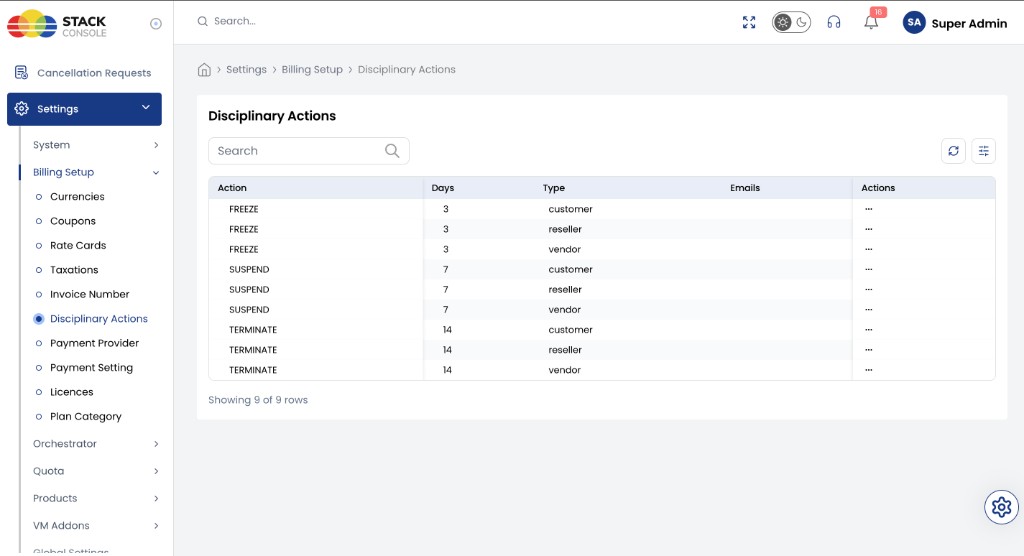
Update Action form (global)
Open the ⋯ menu on a row → edit. The Update Action panel uses the same fields for FREEZE, SUSPEND, and TERMINATE.
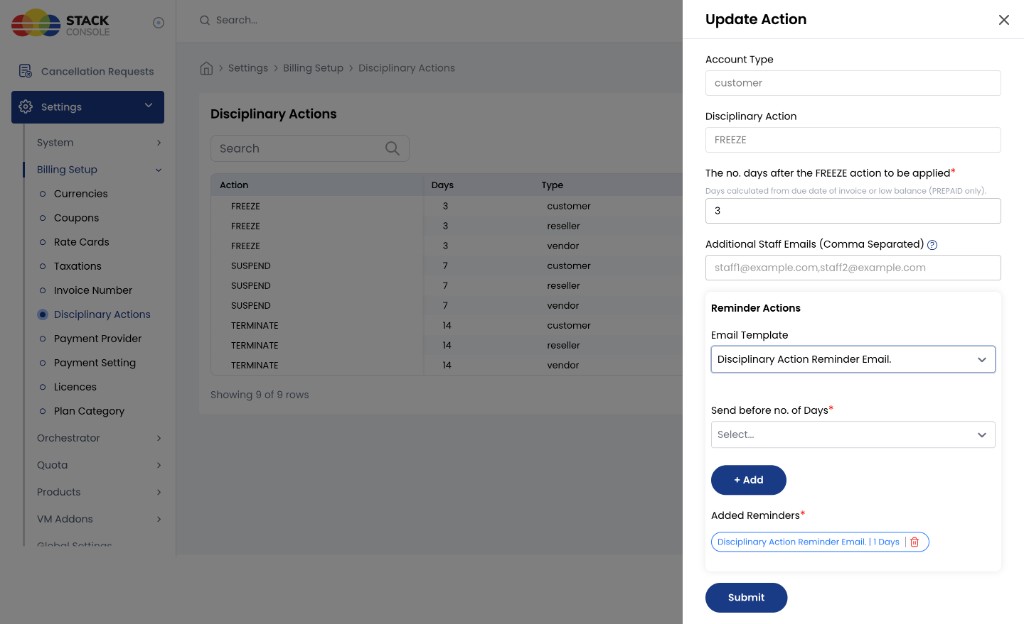
Account Type
Read-only on edit. The account category this rule applies to — customer, reseller, or vendor.
Disciplinary Action
Read-only on edit. FREEZE, SUSPEND, or TERMINATE.
The no. days after the … action to be applied
Required. Number of days after the trigger before this action runs.
Days are calculated from the invoice due date, or from low / negative balance for prepaid accounts (as shown in the form helper text).
Additional Staff Emails (Comma Separated)
Optional. Extra addresses notified when this action (or its reminders) fire — for example staff1@example.com,staff2@example.com.
Reminder Actions
Configure one or more reminder emails for this action. Full definition of the day values: Reminder emails and timing.
| Control | Purpose |
|---|---|
| Email Template | Template to send (typically Disciplinary Action Reminder Email) |
| Send before no. of Days | Days before this action to send the email — 0 = action day, 1 = day before action, 2 = two days before, … (not Day 0 from due date) |
| + Add | Add that pair to Added Reminders |
Added Reminders lists rows such as Disciplinary Action Reminder Email | 1 Days. Remove a row with the delete control, then Submit.
Account-level disciplinary settings
Path: Clients → [select client] → Disciplinary
Use this when one account needs different timing, exclusion, or a temporary manual override.
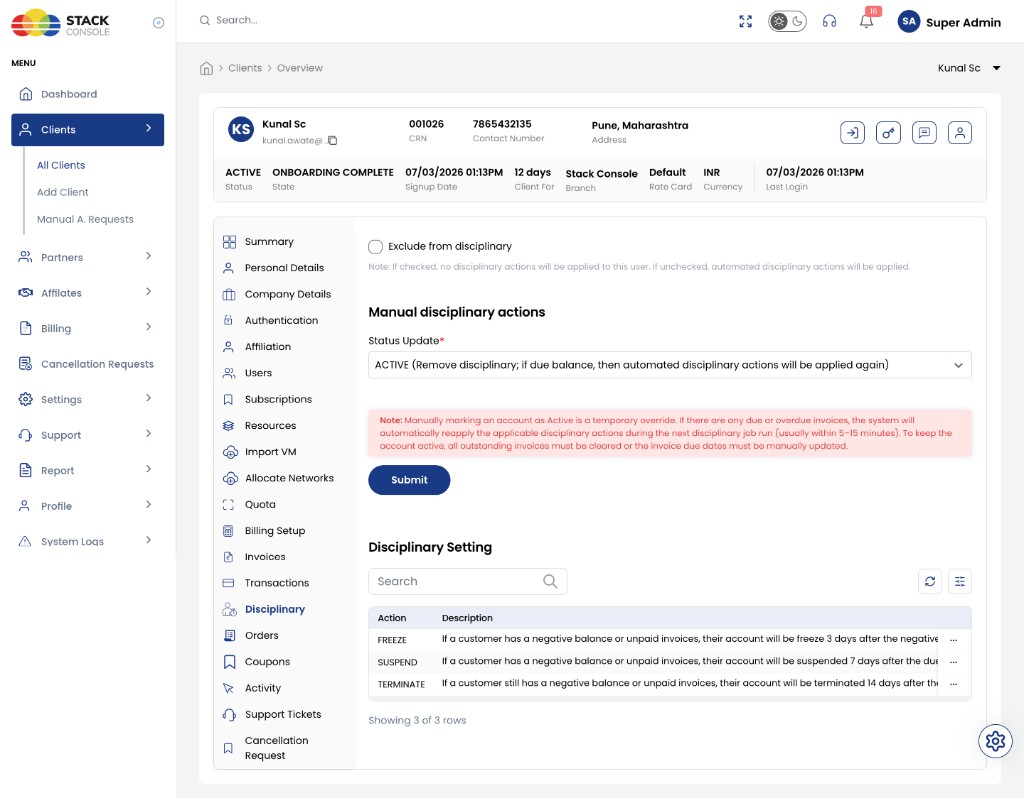
Exclude from disciplinary
Exclude from disciplinary
- If checked — no automated disciplinary actions run for this user
- If unchecked — automated actions apply per the account’s disciplinary day settings
Use for enterprise / finance-delayed customers who must not be frozen or suspended for short payment lags.
Manual disciplinary actions
Status Update (dropdown)
Manually set account disciplinary status (for example mark ACTIVE to remove an applied freeze/suspend/terminate).
The ACTIVE option is described in-product as: remove disciplinary; if a due balance remains, automated disciplinary actions will be applied again.
Manually marking an account Active is a short-term override. If invoices stay unpaid / balance stays due, CMP can re-apply disciplinary actions within about 5–15 minutes.
To prevent re-application: clear the invoices, or adjust due dates so the account is no longer overdue before automation runs again.
Click Submit after changing the manual status.
Account-level days, emails, and reminders
The account Disciplinary Setting table lists FREEZE / SUSPEND / TERMINATE for that client (with day descriptions). Edit each row with the same Update Action fields as global settings:
- Days until the action
- Additional Staff Emails
- Reminder Actions / Added Reminders
That lets one customer use different grace days or staff notification lists without changing platform defaults for all customer / reseller / vendor types.
Admin controls (summary)
| Need | Where |
|---|---|
| Default days & reminders for all new accounts of a type | Global — Billing Setup → Disciplinary Actions |
| Separate rules for reseller or vendor | Global — edit the matching Type row |
| Extra staff emails on trigger | Additional Staff Emails on global or account Update Action |
| Stop automation for one account | Account → Exclude from disciplinary |
| Give temporary access while dues exist | Account → Manual disciplinary actions → set ACTIVE (clear dues or expect re-apply) |
| Custom days/emails/reminders for one account | Account → Disciplinary Setting table → Update Action |
Example: Postpaid account is suspended. Customer asks for 3 more days. Admin sets manual ACTIVE (or revokes) and clears or extends invoice due dates so automation does not suspend again within minutes.
Reseller and vendor
Global lists include reseller and vendor types alongside customer. Configure each type’s FREEZE / SUSPEND / TERMINATE separately so partner accounts can have different grace periods and notification lists than end customers.
Super admins reviewing reseller → end-customer relationships should still apply the same billing principles when those end customers are under disciplinary states.
Pages in this section
- Freeze
- Suspend
- Terminate
- Stoppable Services — billing while resources are stopped under suspension